 Hungary
  Italy
Italy  France
  Greece
  Switzerland
  Sweden
  Lithuania
  Latvia
  Estonia
  Denmark
  Finland
  Romania
FAQ
We provide specialized software for crop monitoring and analysis, field management, and weather forecasting tailored for agriculture.
For some digital products (MagicScout), we offer limited free versions for you to evaluate before making a purchase.
Unfortunately, you cannot leave feedback or reviews for products purchased yet. However, we will be improving our Agrocloud e-shop soon and you will have the opportunity to contribute. Thanks in advance for your contribution.
Your privacy is important to us. We do not share your personal information with third parties without your consent and we protect it with advanced security measures.
Creating an account is quick and easy. Simply click on the “Sign Up” or “Create Account” link located at the top of our website and follow the prompts to provide your name and email address and create a password. Once your account is created, you can log in to view your order history, track shipments, and save your payment information for faster checkout.
To place an order, simply browse through our products, select the items you wish to purchase, and add them to your cart. Once you’ve added all the items you need, proceed to checkout and follow the prompts to complete your purchase.
We accept a variety of payment methods, including credit/debit cards (Visa, Mastercard, American Express). You can select your preferred payment method during the checkout process.
You will automatically get an email confirming the order once the payment has been successfully accepted by our online payment processing partner. If you do not receive this, please search for AgroCloud in your email application or check your spam folder.
No, we do not offer this service, as most of our digital solutions are virtual.
Unfortunately, we do not offer custom orders or bulk discounts yet.
Yes, we regularly offer discounts and promotions to our customers. To stay updated on our latest offers, sign up for our newsletter or follow us on social media. Additionally, keep an eye out for special promotions advertised on our website.
We offer home delivery for any hardware or device included in your order. For software or licenses, you will receive the relevant information via e-mail.
Once your order has been shipped (in case of hardware or device), you will receive a shipping confirmation email containing a tracking number. You can use this tracking number to monitor the status of your delivery through our website or the courier's website.
No, we do not offer international shipping because the digital solutions that we are selling are country specific. You must browse Agrocloud.bayer.com from your country (related to your billing address) to see the digital solutions that are available in your location.
For software only, your credentials will be sent via e-mail rapidly. For hardware, depending on your country, shipping will take from 3 to 5 working days.
If our hardware products have any damage or defective on arrival, please contact us through the contact form and we will deal with the issue as soon as possible.
We offer 24/7 technical support via FAQs, email and chatbot. If you have any questions, concerns, or need assistance with your order, our customer support team is here to help. You can reach us by filling out the contact form on our website. We strive to respond to all inquiries within 24 working hours.
Our AI-based virtual assistant is here to help you 24/7. You can use the chatbot for quick assistance with common questions, troubleshooting steps, and to connect with our support team if you need more help.
We’re here to help! If you have a question that hasn’t been addressed in our FAQs, please feel free to reach out to our customer support team. You can contact us via email, or through our online chatbot support. Our knowledgeable team is ready to assist you with any inquiries you may have about our products, services, or policies. Your satisfaction is important to us, and we’re committed to providing you with the information and support you need.
You cannot cancel your order once payment has been approved. If you subscribed for a 1 year/1 season license, you would have the opportunity to cancel your renewal to avoid extending your subscription after 1 year/1 season.
For software, we do not have return/exchange option. For hardware, our return/exchange policy depends on the digital solution: for Magic Trap, please visit the product terms and conditions here.
The product warranty depends on the digital solution you are planning to buy/ already bought.
- For ResiYou, no product warranty applies.
- For Magic Trap, please visit the product terms and conditions
- For Grape Vision, no product warranty applies.
Yes, we use Stripe for processing payments, which ensures your data is secure. Stripe is a leading payment gateway known for its robust security measures. It complies with PCI-DSS (Payment Card Industry Data Security Standard) Level 1, the highest level of certification available in the payments industry. Additionally, Stripe uses advanced encryption to protect your transaction details, and our website employs SSL encryption to safeguard your personal information.
Yes, your personal details are secure. AgroCloud is built on a robust eCommerce platform that employs advanced security measures to protect your information and ensures that your data is handled safely. Additionally, we use SSL (Secure Socket Layer) encryption to safeguard data transmission between your browser and our servers. We also implement regular security updates and patches to maintain the highest level of security for our customers’ personal details. Your privacy and data security are our top priorities.
The trap body is available in the shop as a spare part, as with the first generation.
We recommend using the new camera module with the new trap, identifiable by the Bayer cross on the water tank.
Please contact our support team in individual cases.
The MagicScout App is available free of charge in the Google Play Store for Android or in the Apple App Store for iOS.
Download the app now and connect your MagicTrap in just a few steps.
Please note: your licence is linked to the email address used at purchase.
For correct linking, the same email address must be used when creating the MagicScout user account as for the webshop order.
If you have logged in with a different address, we can adjust the licence manually. Send a short message to our customer service team.
The MagicScout app allows you to archive MagicTrap data!
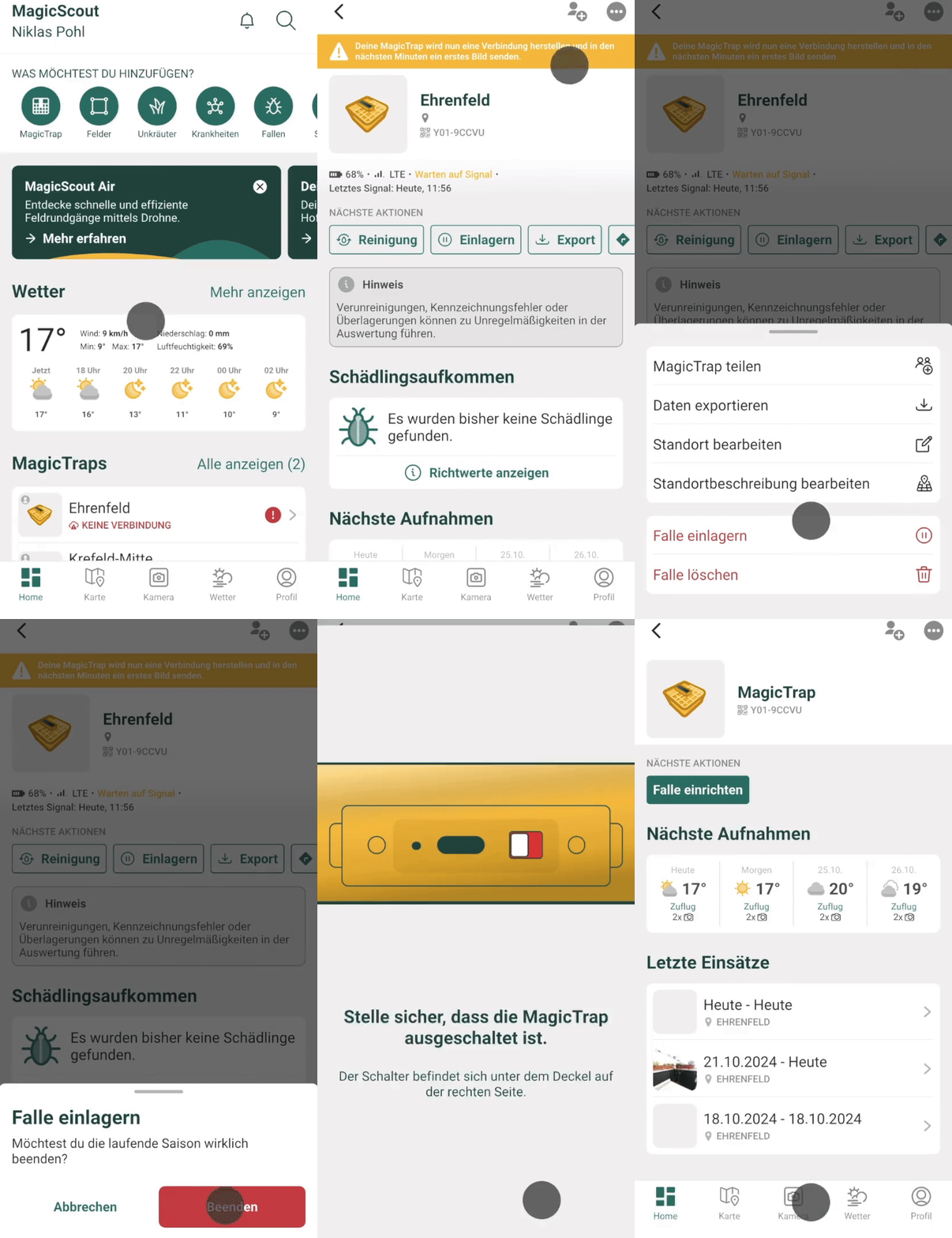
Here is a step-by-step guide to archiving the data:
- Under Home, select the desired MagicTrap whose data is to be archived.
- Click on the three-dot menu at the top right
- Here you can choose between the options “Save trap” and “Delete trap”. Both offer the option to back up the data.
- Confirm the action by pressing on the red “End” or “Delete case” field.
- The “Archive” field now appears.
MagicTrap automatically detects rape pests using our intelligent image recognition.
We use artificial intelligence (AI) for image recognition. Our models are continuously trained to recognize patterns in images. To ensure that the software has sufficient training material available, we have created an extensive data archive with thousands of images, which is constantly growing.
The archive contains, for example, photos of yellow peels in a wide variety of situations, perspectives and lighting conditions as well as a number of reference images of typical rape pests.
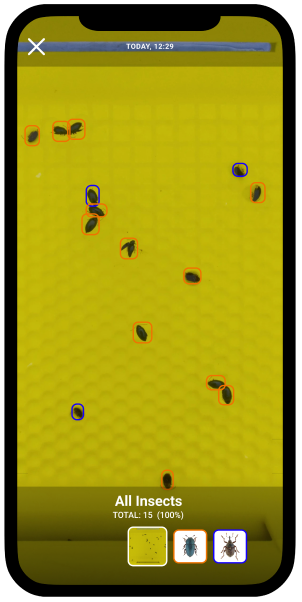
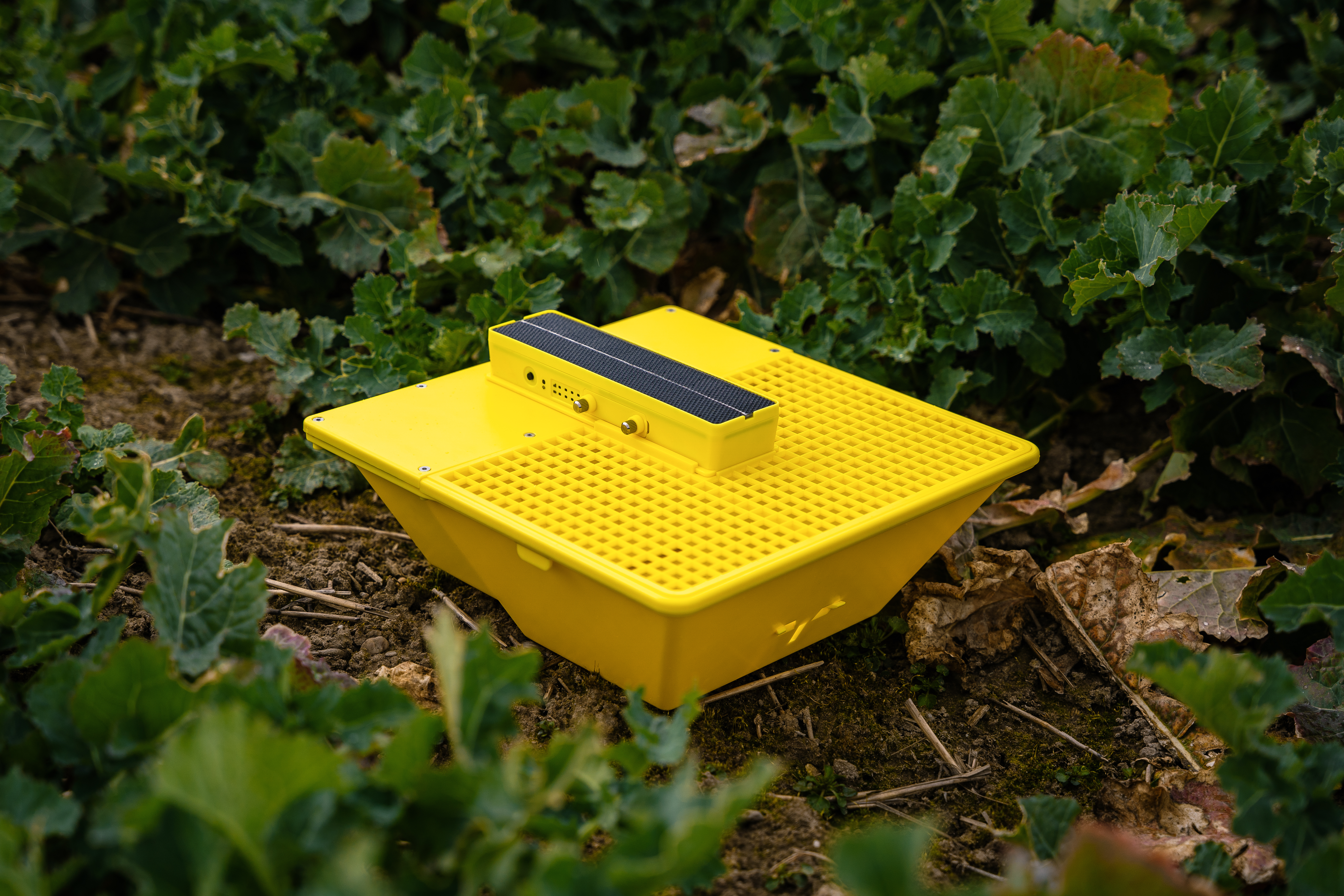
Tired of counting rape pests by hand? The MagicTrap 2 has a high-resolution camera with autofocus, which photographs the contents of your yellow bowl at regular intervals and sends it to the MagicScout app via mobile network.
The images are automatically evaluated and the results are then made available on your smartphone.
The MagicScout application provides all important information about the maintenance needs of your MagicTrap. The focus is on the quality and corresponding analysis of the generated images.
As part of this, the following status messages may be displayed. Feel free to use our sample images as a guide.
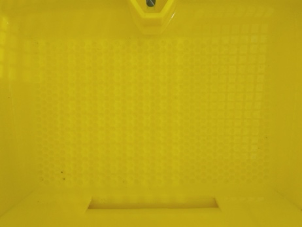
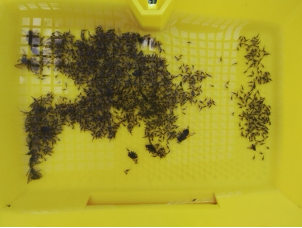
Empty: Your MagicTrap is empty or has recently been cleaned.
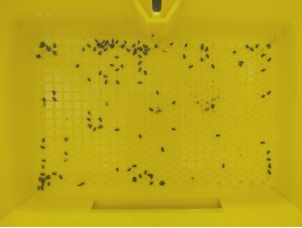
Normal: Your MagicTrap shows isolated pest infestation.
Too full: Your MagicTrap contains too many pests. Please clean the trap body to ensure optimal image recognition.
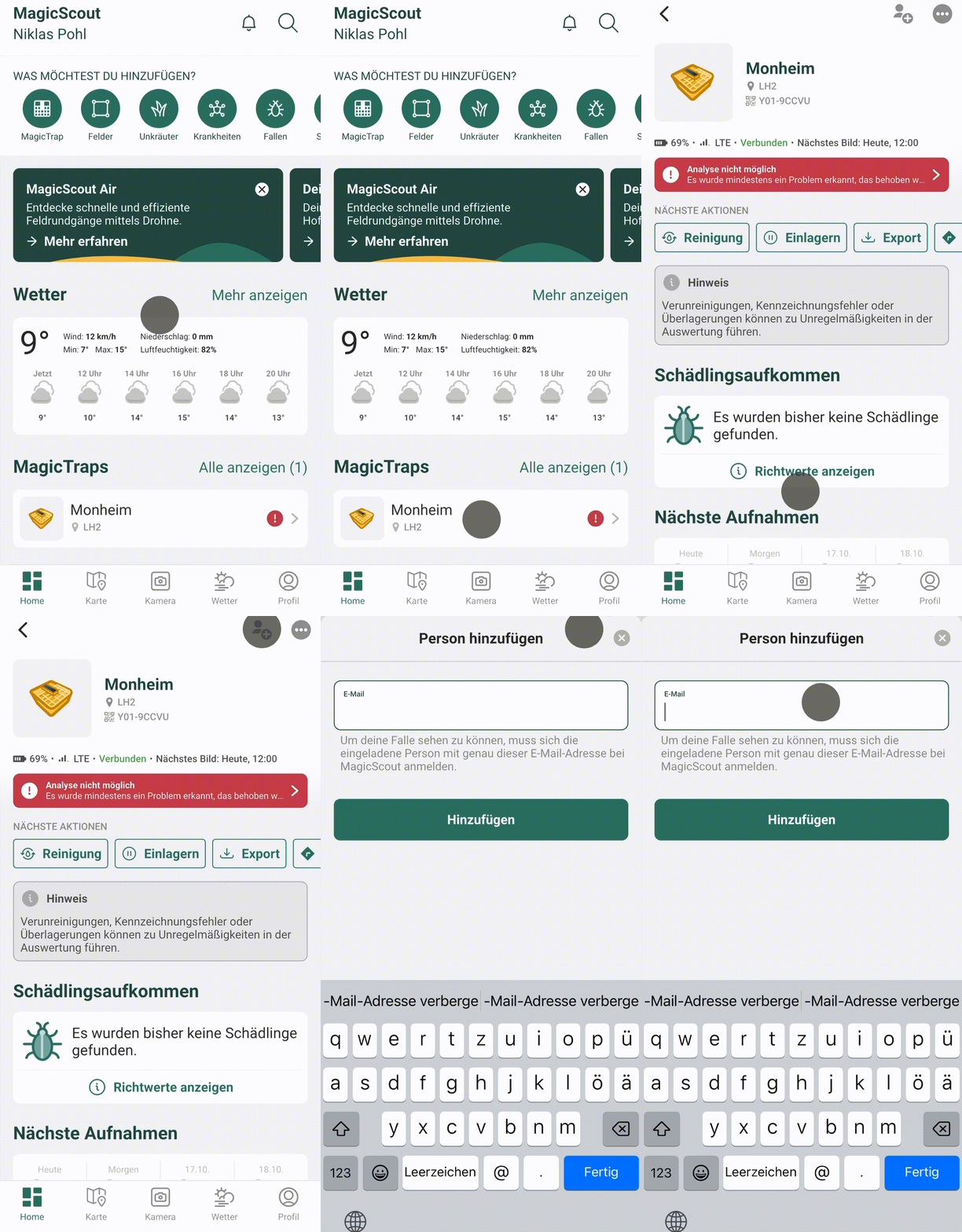
Share MagicTrap (“main account”)
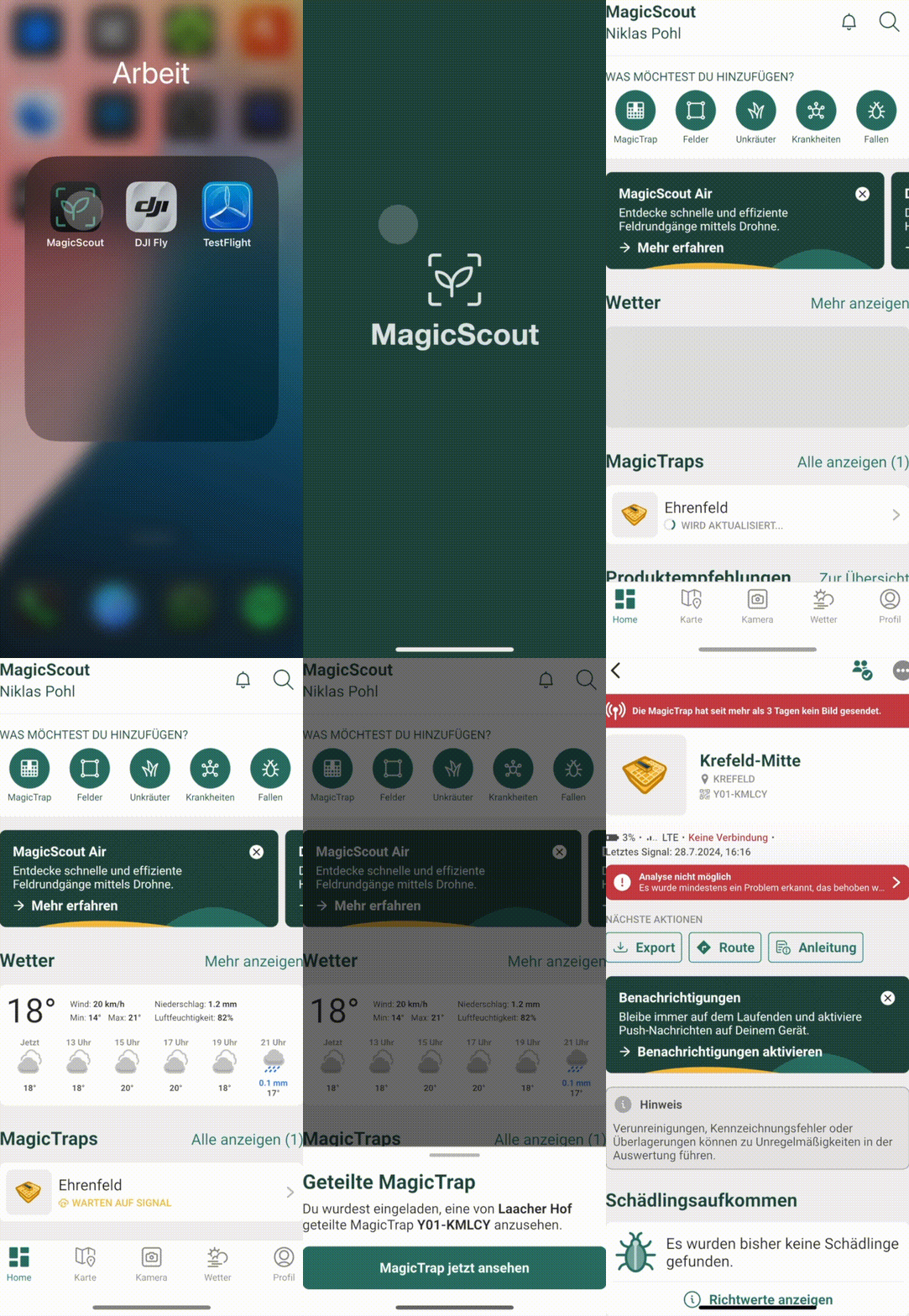
Accept case (“guest account”)
Do you want to examine the pest infestation of your MagicTraps yourself and create your own evaluations? No problem! At any time, you can export the analyses of the traps (number of identified pests) as a CSV file, which you can easily open in Excel.
You have 2 options:
// Option 1: Export data from a single trap: You will receive a CSV file with data from a trap
- Select trap in the app
- Click on the three dots at the top right
- Touch “Export data”
- Enter the desired options and time period (see export settings)
- Touch “Export”
- Determine storage location
// Option 2: Export data from several traps at once: You will receive a CSV file with data from several traps
- Profile
- App settings
- Data and storage
- Export - Traps
- Select the traps whose observations are to be exported together
- Enter the desired options and time period (see export settings)
- Touch “Export”
- Determine storage location
// Export settings
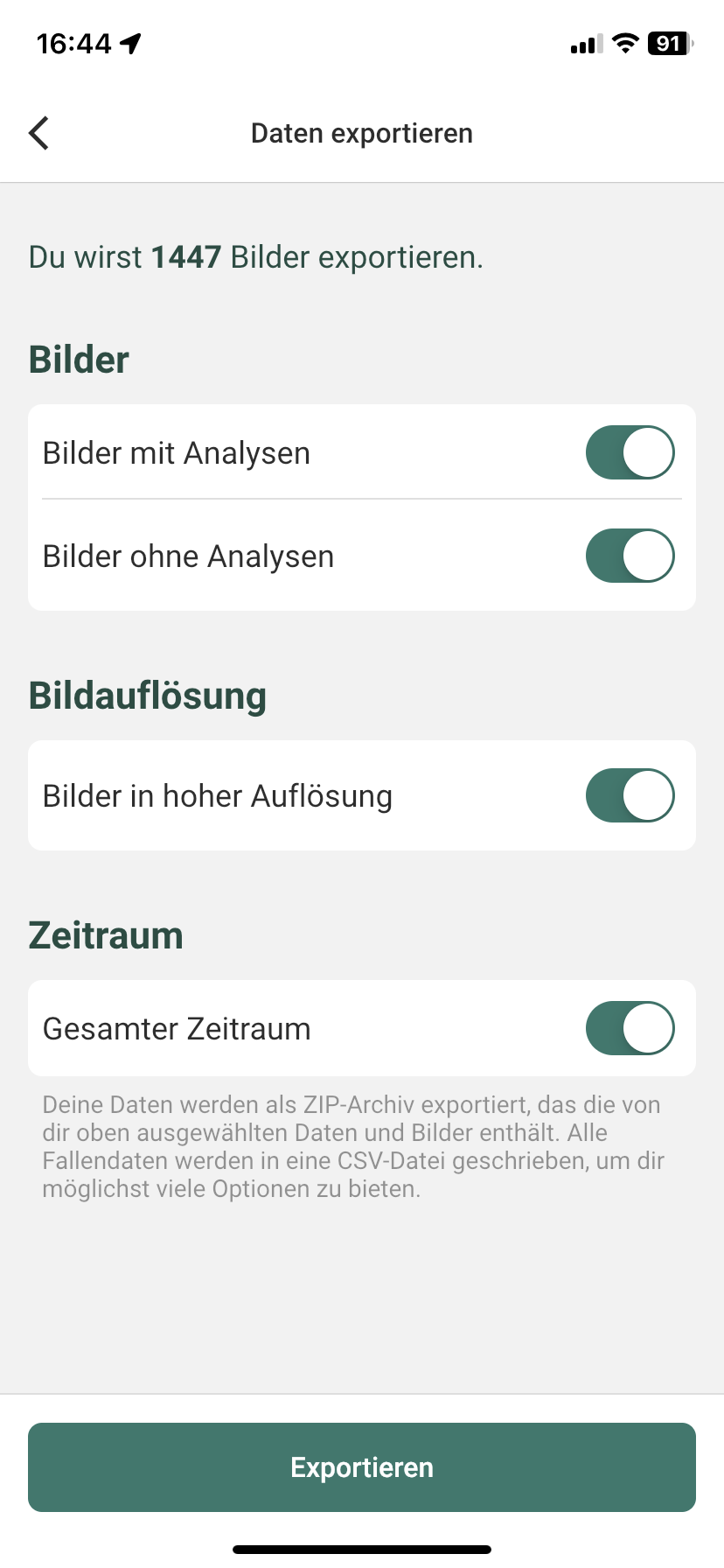
- Note: When exporting, images and a CSV file with the corresponding evaluations are always compressed in a ZIP file
- Images with analyses: The images for which the AI has identified insects are exported
- Images without analyses: The images for which the AI has not identified any insects are exported
- High-resolution images: When switched on, images are exported in their original size. Depending on the number of images, the file size can be several GB
- Time period: Determine the period of interest, or export all data from day 1 of use
// Names
The names of the identified insects are presented in the CSV as abbreviations of the scientific names.
PSYICH - rapeseed flea
CEUTSP - Weevils (species)
MELIAE - Rapeseed Beetle
BOMUS - bumblebee (species)
APISSP - bee (species)
Our MagicTrap 2 can currently only be purchased in our web shop for Germany and Austria. The first-generation MagicTrap is no longer available in these countries.
For customers from the Czech Republic, Slovakia, Poland and Great Britain, we currently still offer the first-generation MagicTrap in our web shop. We are working hard to make MagicTrap 2 available here as well.
MagicTrap is also available in Sweden, Lithuania, Latvia, Hungary, Estonia, Denmark, Finland, Romania and Switzerland via our partner web shop.
In order to be able to process an order accordingly, we need an appropriate local delivery and billing address.
To stay up to date, feel free to keep an eye on our website — as soon as there is news, we will publish it.
You have the following options for a license/subscription via our web shop:
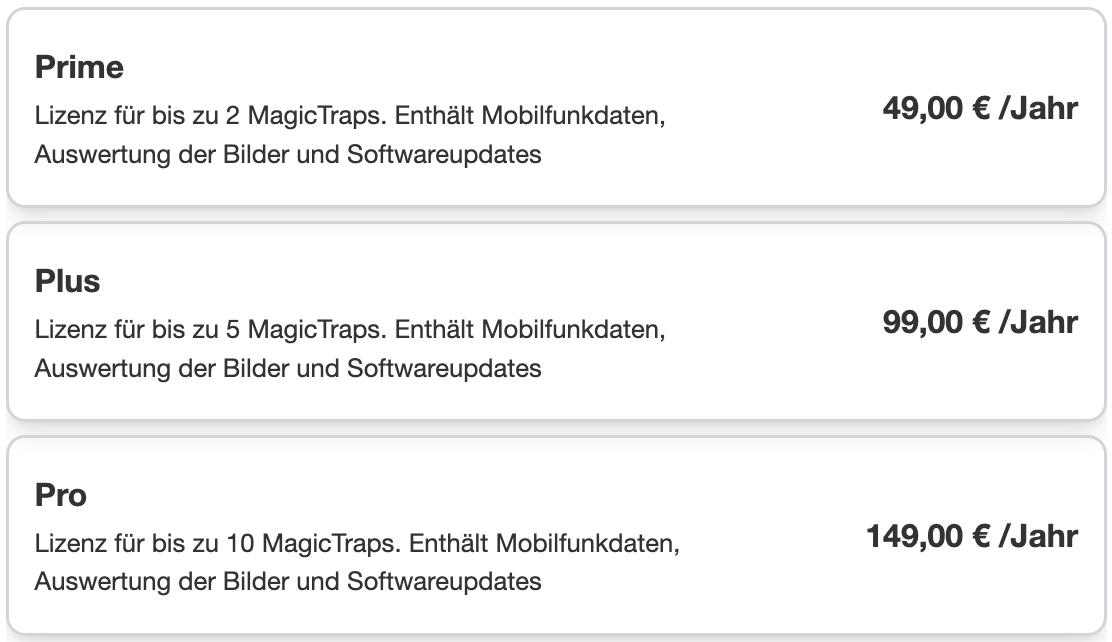
With an email address/account, you can purchase a maximum of one Pro license. A second account is required to access more than 10 traps.
Only the purchase of the license gives you an insight into the images and corresponding analyses.
Important note:
For an error-free connection of the physical MagicTrap with the MagicTrap software, the same email address must be used when creating the account as when ordering from the web shop.
If you have signed in to the app using another account, we can also manually adjust the license. Please send us a short message to our customer service and we will get back to you as soon as possible!
License upgrade or downgrade
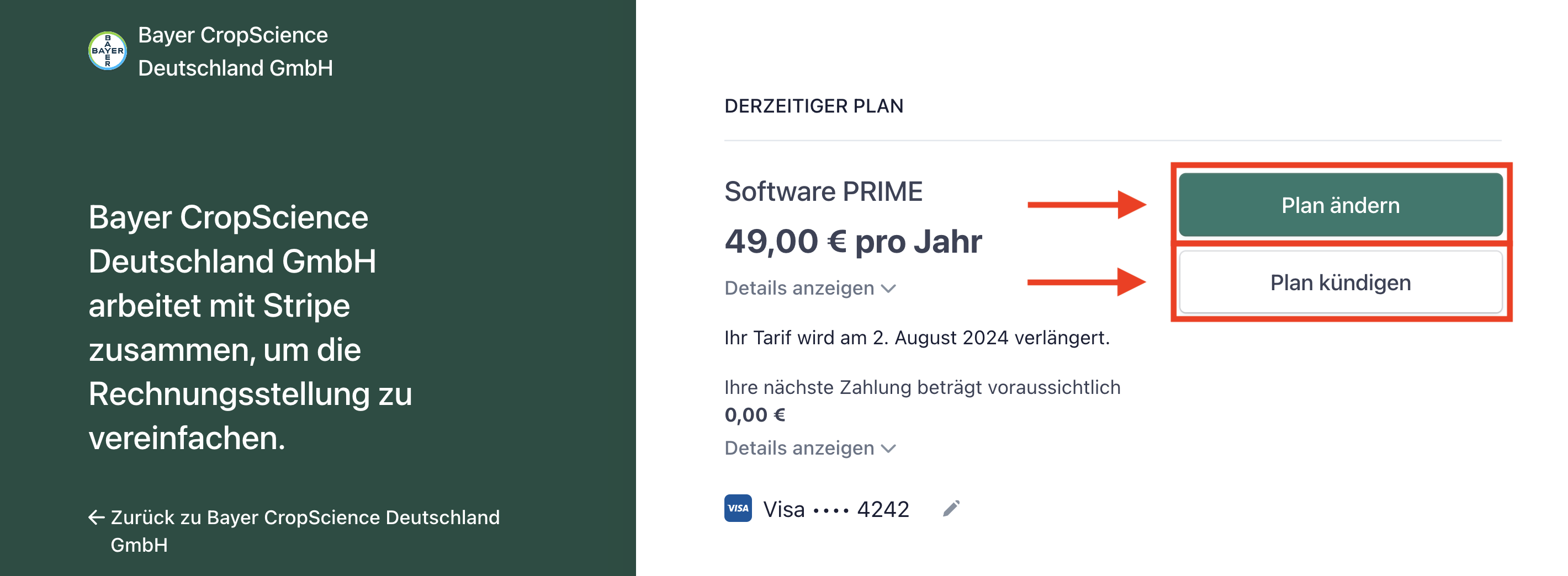
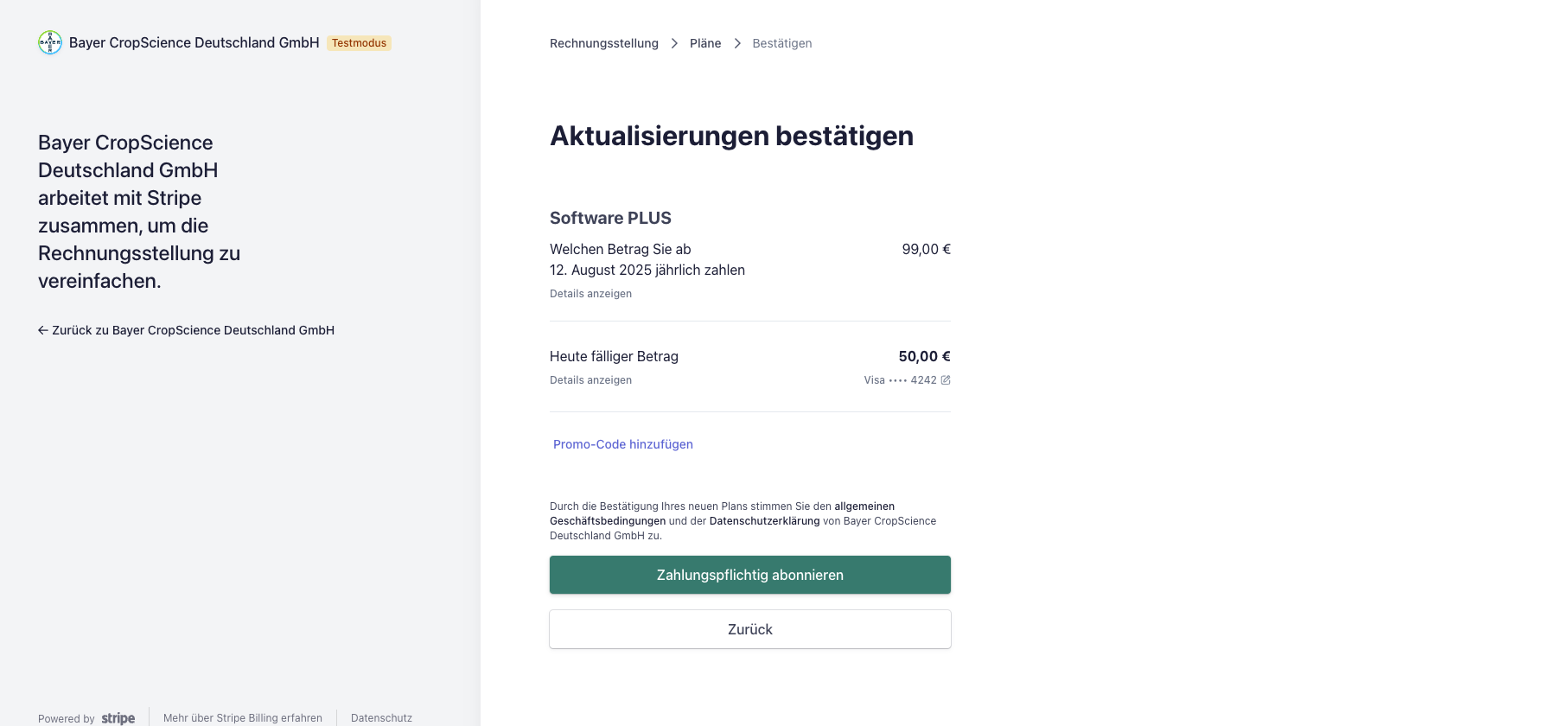
In the event that you want to reorder MagicTraps and need the next highest license, or maybe even use fewer traps and want to downgrade, you can easily rebook this via your profile on the website under “Change Plan”.
Cancel or pause licenseYour subscription is automatically renewed annually on the order date. Before you renew, you will receive a reminder email from us.
If you no longer use your MagicTrap, you can cancel your license at any time. Use the “Cancel Plan” feature to do this.
If you want to pause your license because, for example, there is no rapeseed in your crop rotation, you must also cancel the plan first.
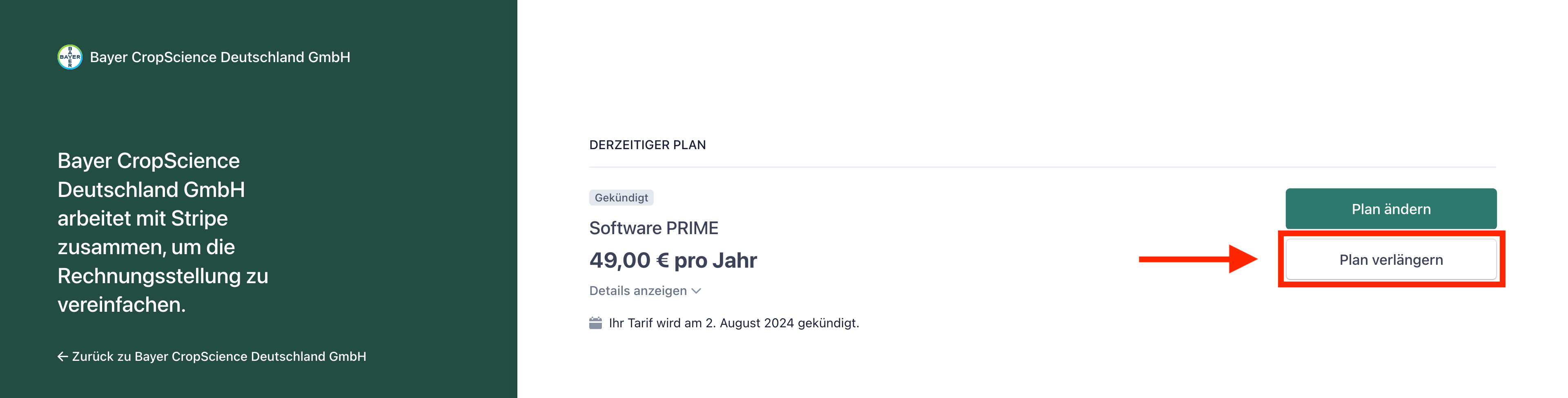
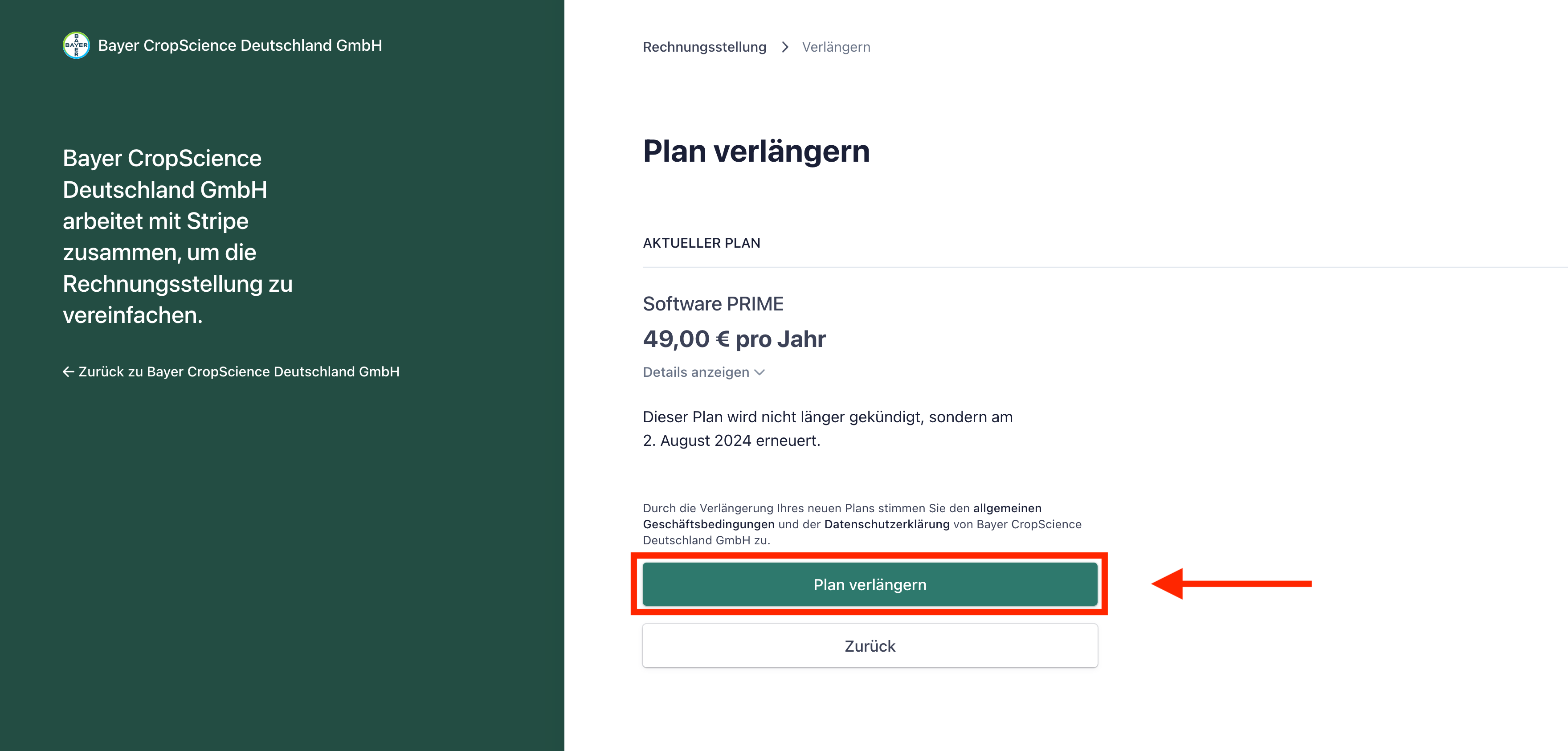
After a cancellation, you can select the “Extend Plan” function in your profile at any time. Your license will then be reactivated.
AND THIS IS HOW IT WORKS:
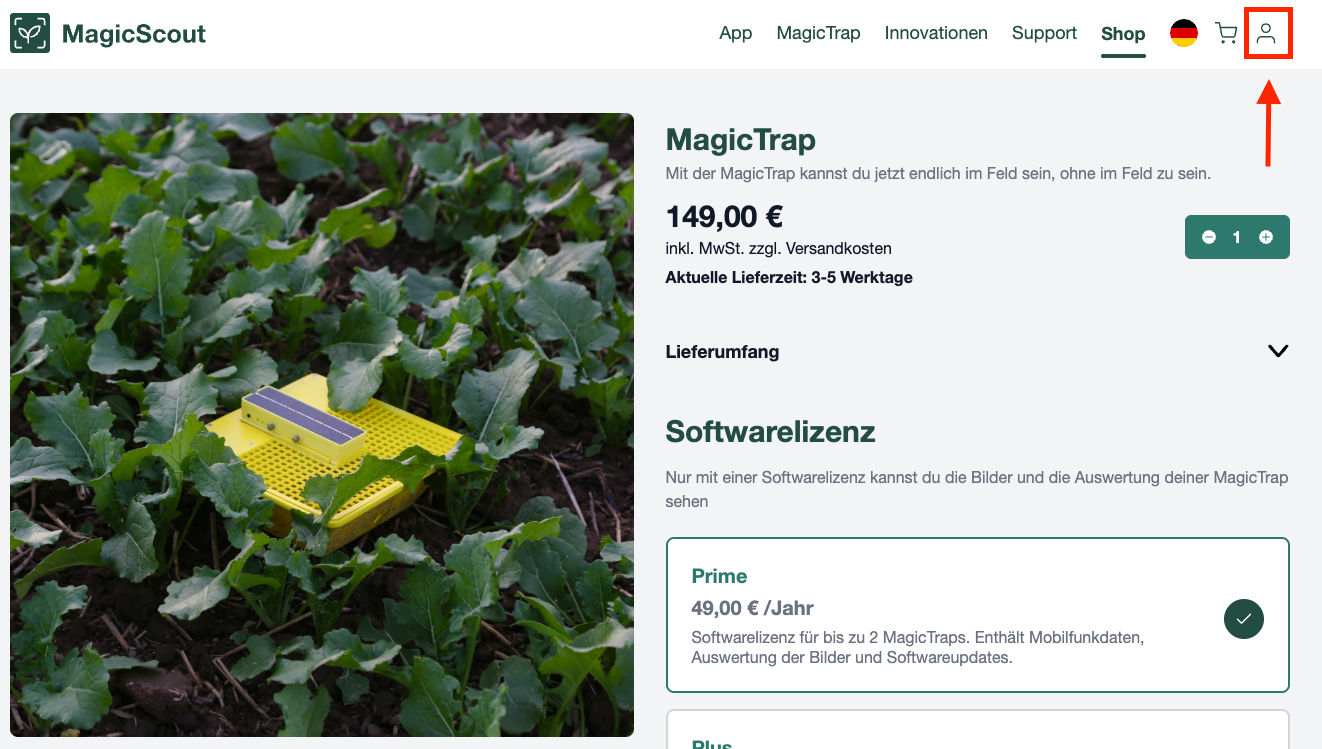
- View profile (login with your email address)
- Change/cancel license plan
- Confirm updates
Have you canceled your license and need access to your MagicTrap again for the coming season?
You have two options:
If you canceled your license a long time ago, you can simply buy a new license on the website.
If you've just canceled your license, you can resume the old plan within a short period of time.
AND THIS IS HOW OPTION 2 GOES:
- View profile (login with your email address)
- Select “Extend Plan” under “Current Plan”
- Extend plan
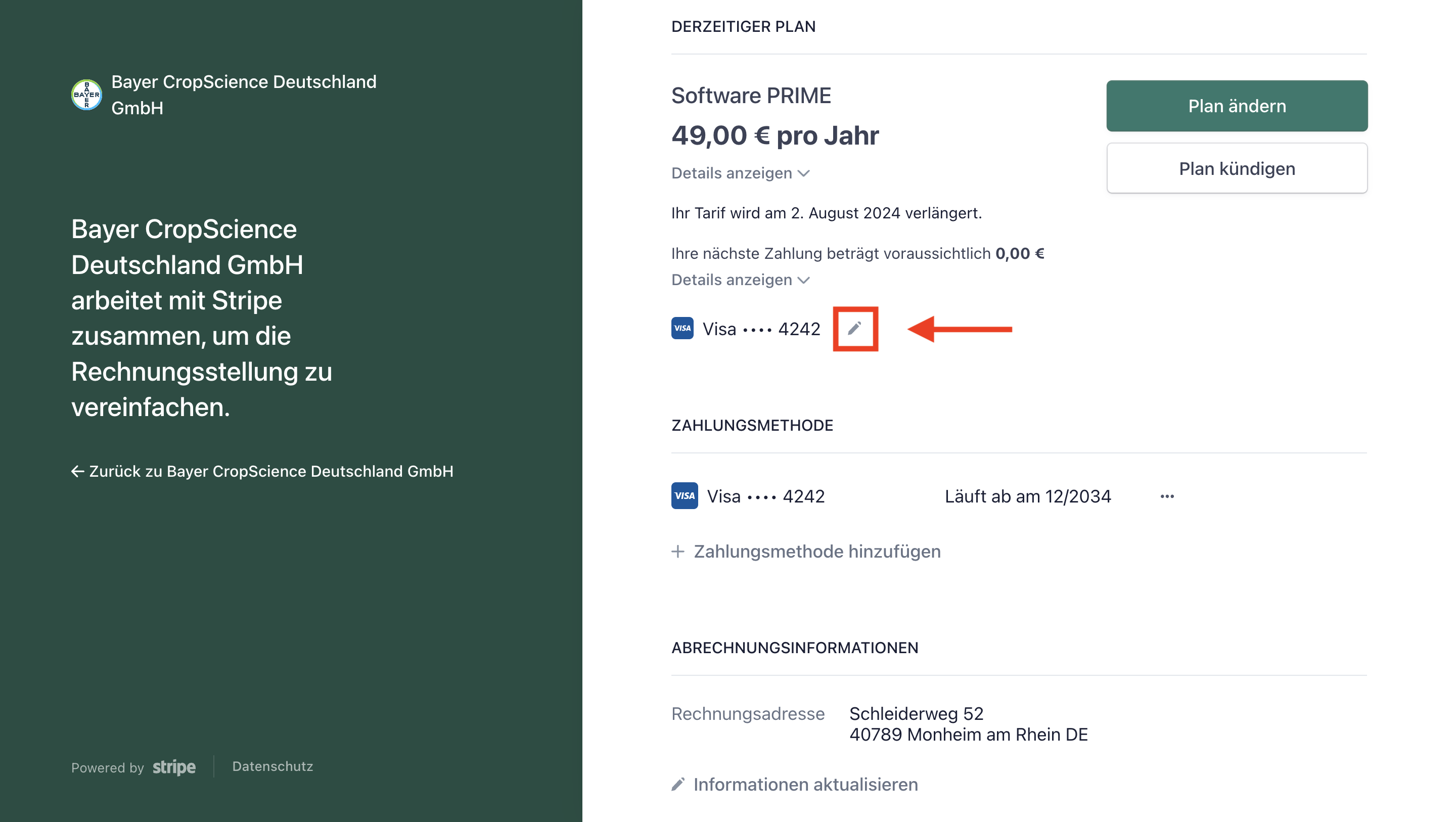
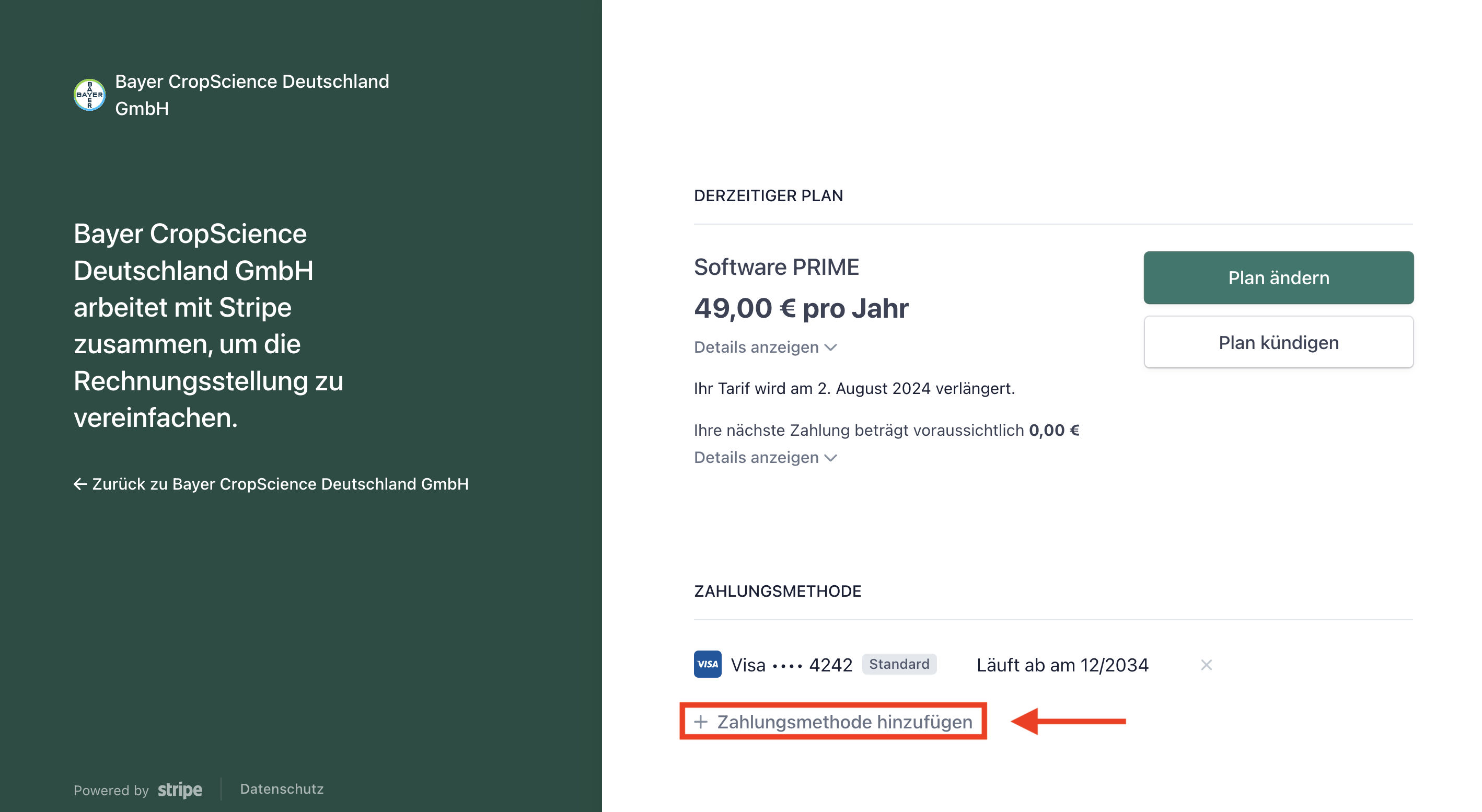
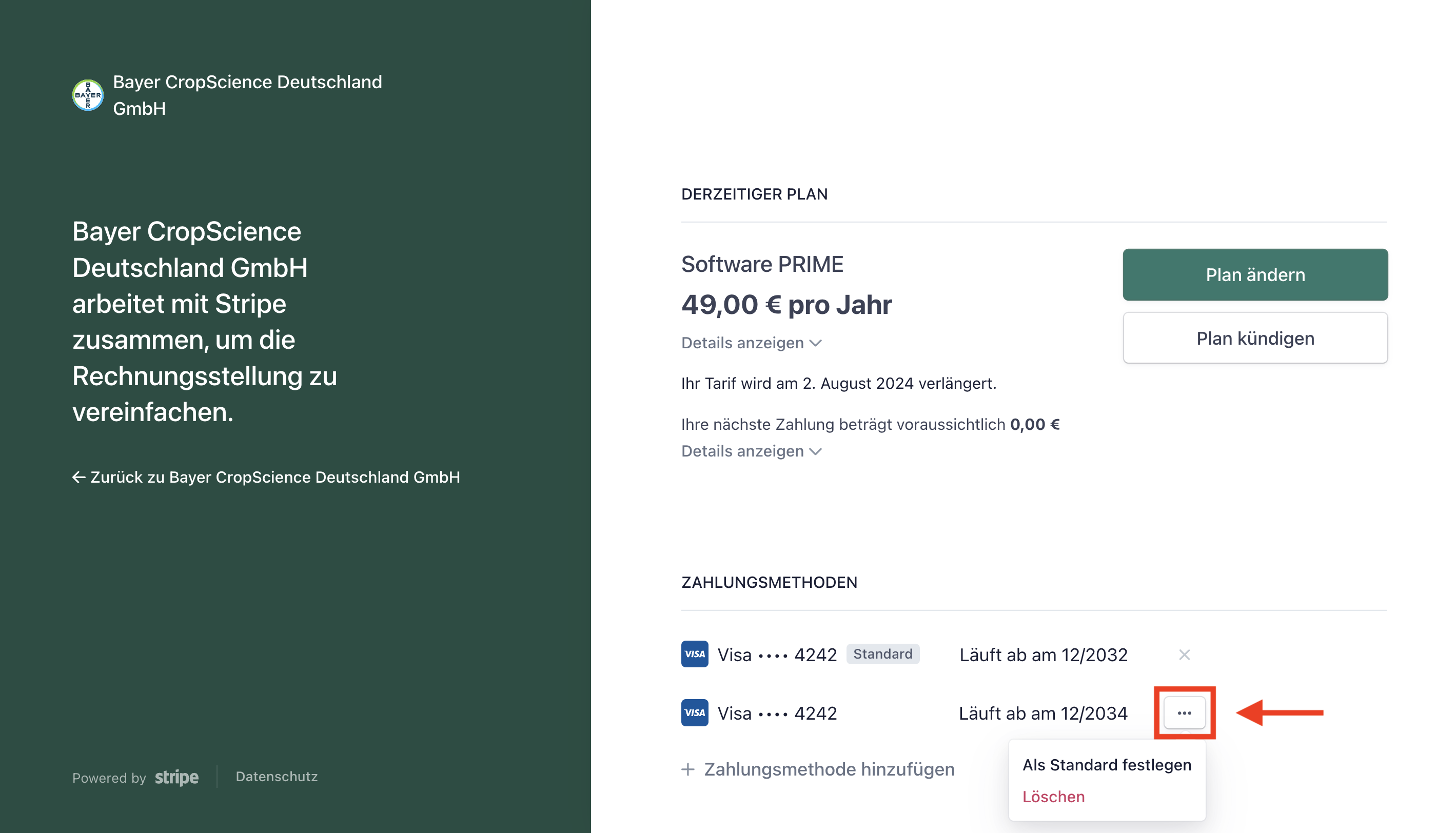
Do you have a new credit card and want to update the information for the next payment? No problem! You can easily manage your payment methods in your profile.
If you have created multiple payment methods, the method set as “standard” will be charged for future settlements.
AND THIS IS HOW IT WORKS:
- View profile (login with your email address)
- Edit payment method (e.g. when the expiration date is updated)
- Add a payment method (e.g. when changing credit cards)
- Delete a payment method or set it as default
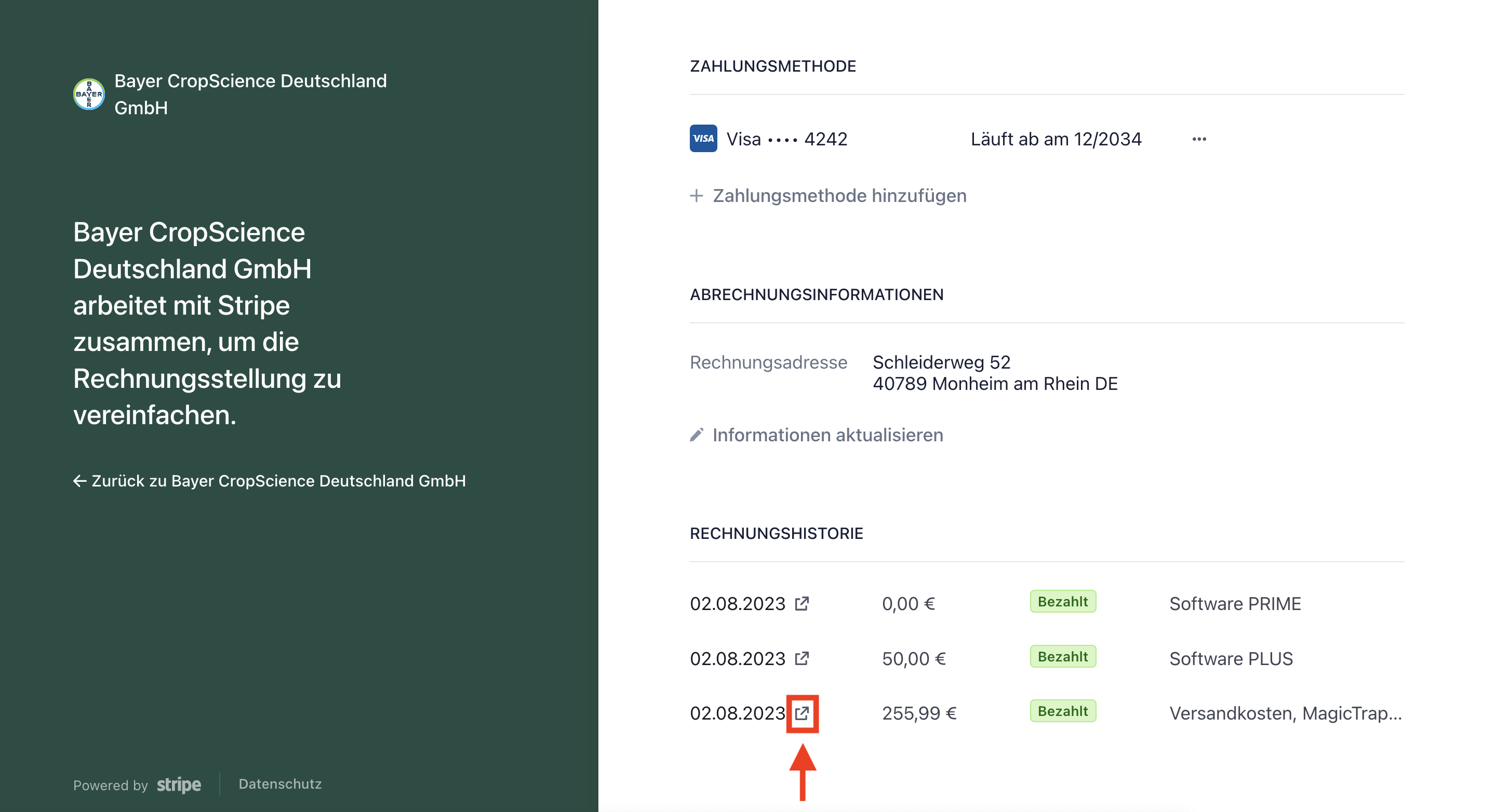
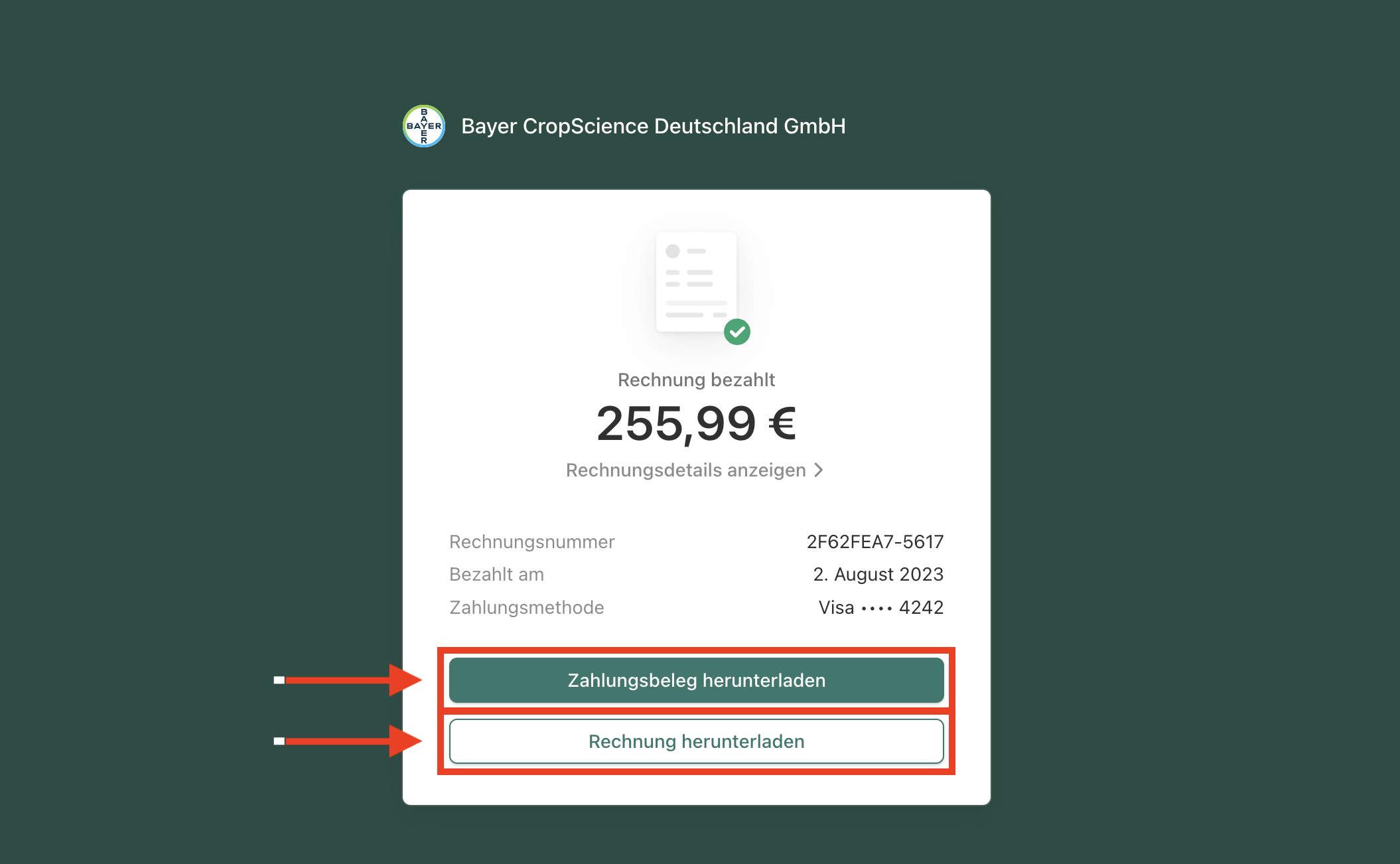
You will automatically receive your invoice and payment receipt by email after every purchase.
If you can't find the documents anymore, you can always find them in your profile.
AND THIS IS HOW IT WORKS:
- View profile (login with your email address)
- Find the corresponding invoice under Invoice History and open a link
- Download receipts
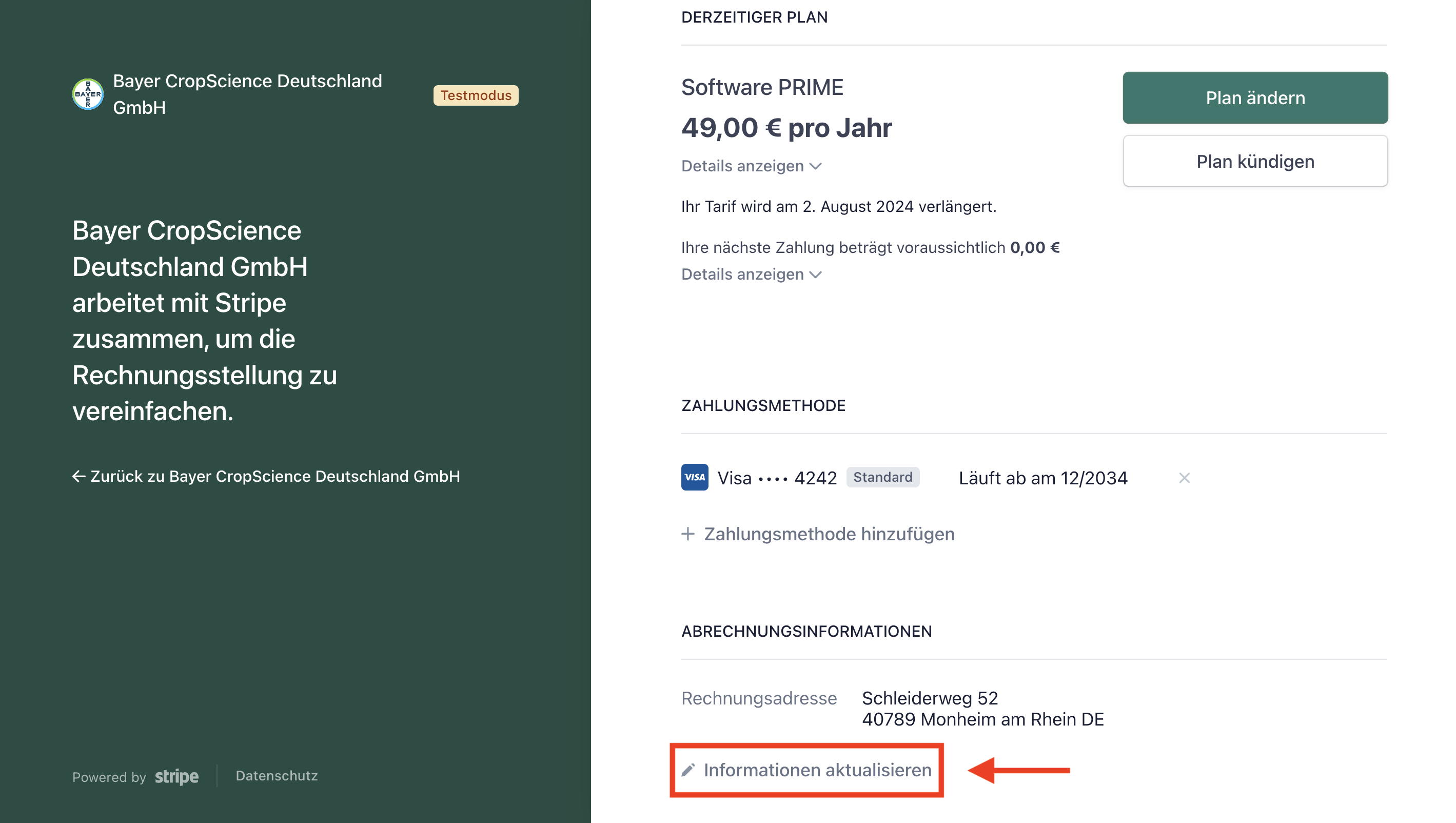
You can update your billing information at any time in your profile.
HERE'S HOW IT WORKS:
- View profile (login with your email address)
- Update billing information
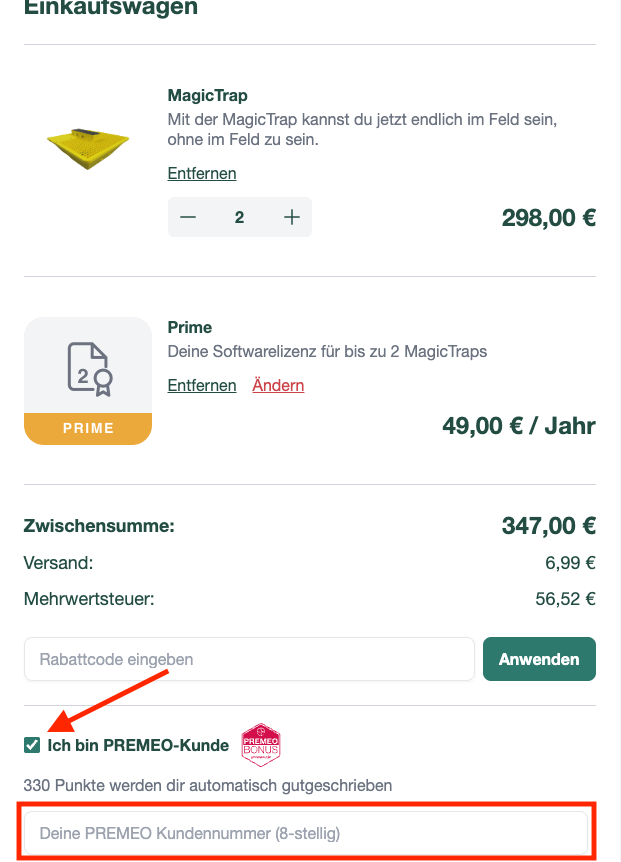
Premeo is a regional advice tool for farmers, retailers and consultants.
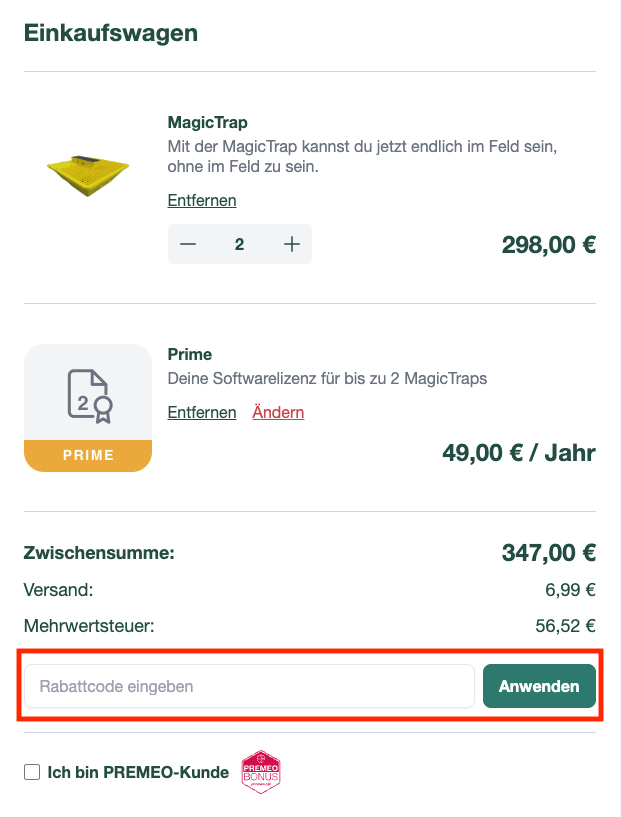
You can collect points and redeem rewards via the portal - even with us! You can simply store the codes generated there below the subtotal in our ordering process, as shown by way of example below, and then click the “Apply” button to check.
The Premeo points when you buy our products are then credited to your Premeo account. First check the PREMEO customer number box and then enter it in the field that appears below!
To place an order, we currently offer credit card and direct debit payment options.
For technical reasons, we are currently limited to these two options, but are working on offering further payment methods in the future.
If you have a question about the ordering process that could not be answered via our FAQ overview, you are of course welcome to contact us via the contact form.
All you need to use your MagicTrap is a mounting rod. We will deliver everything else to you with:
- Yellow bowl including holder
- Camera module
- USB-to-USB-C charging cable
- Two cable pictures for mounting
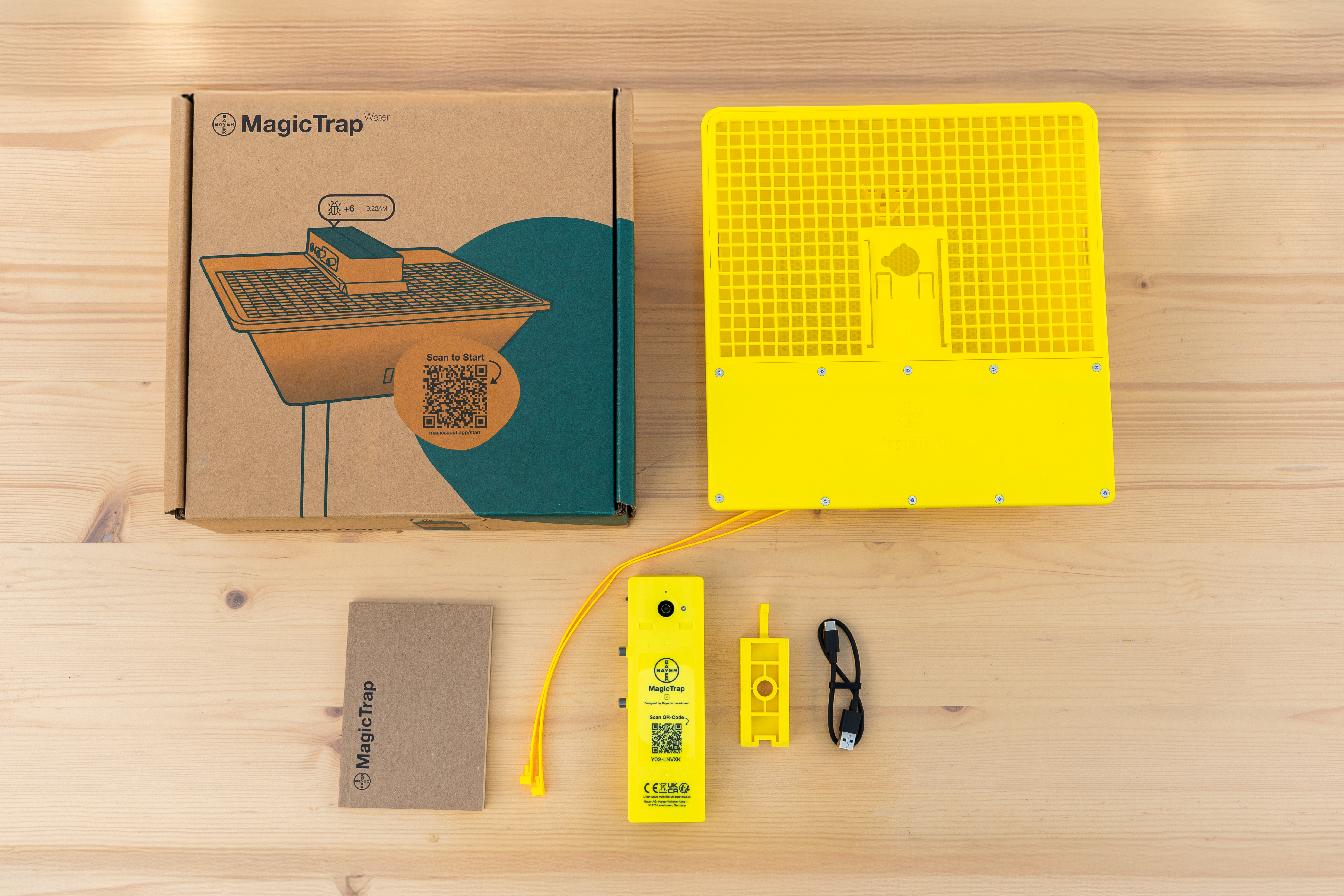
Good to have you with us!
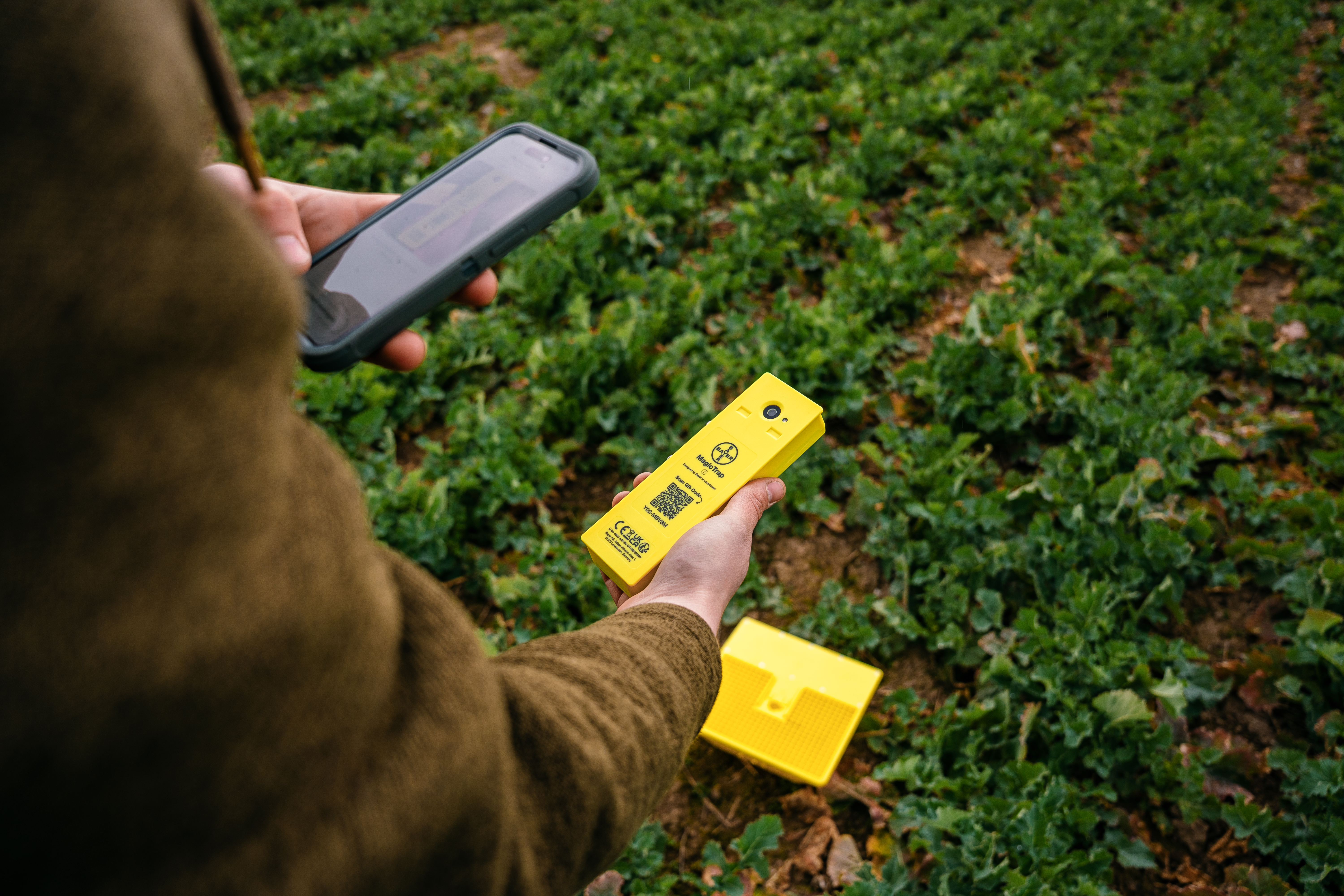
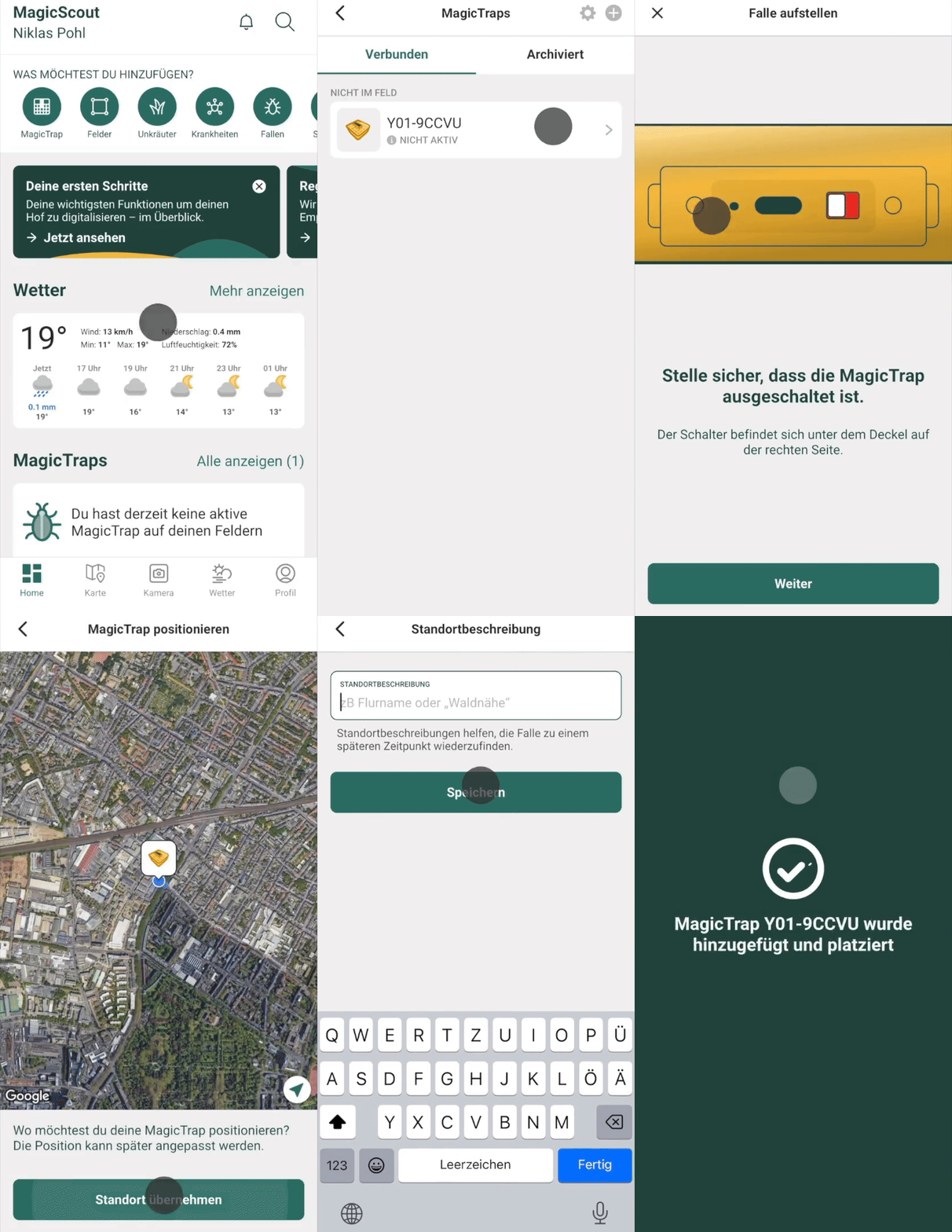
To establish the connection between your MagicTrap and the MagicScout app, you can simply proceed as follows:
- Open your MagicScout app.
- Click on the MagicTrap icon or open the camera of your MagicScout app.
- Scan the QR code on your camera module or enter the model number manually.
- Then select the location on the map where the MagicTrap is positioned.
- Important: Switch on the camera module only after pairing with the app
You will then receive further helpful tips about MagicTrap, which you can also access again and again later.
To charge the MagicTrap 2 module, simply plug in the cable. The device is charged both when switched on and when switched off. The changing green LEDs indicate the device's active charge.
Use the original cable that came with it to charge.
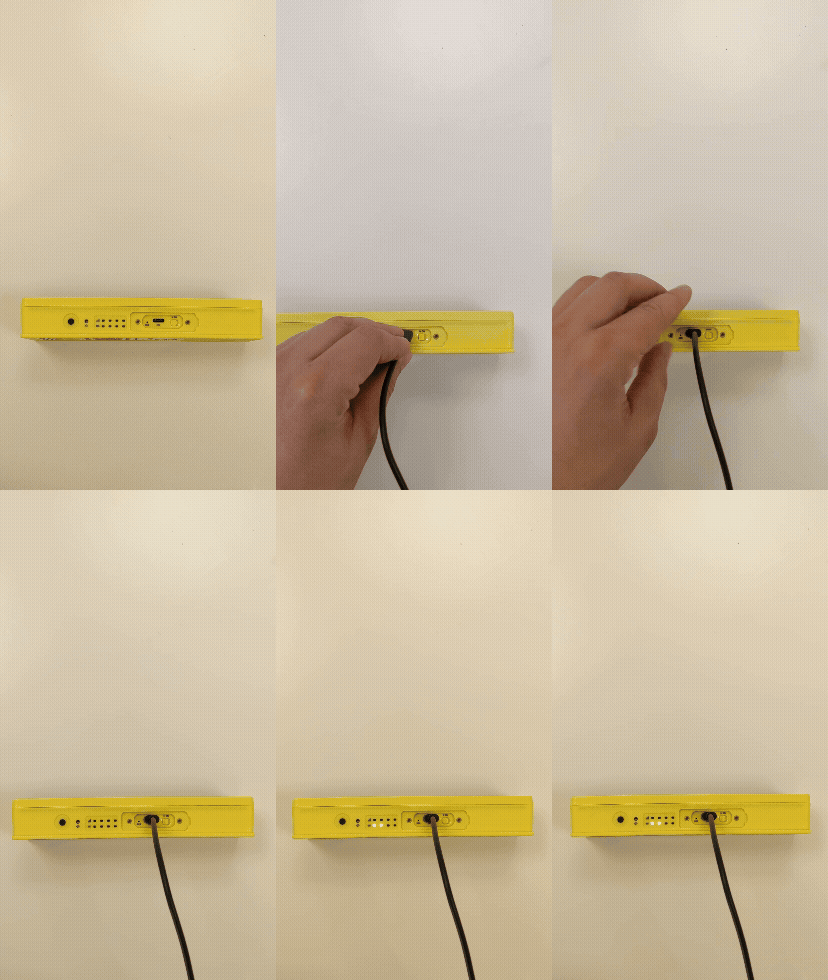
Once fully charged, the module can last for several days even in cloudy weather. So you can get through an entire season without any problems!
⚠️ Important note: Apple accessories are not supported. Please use the included charging cable
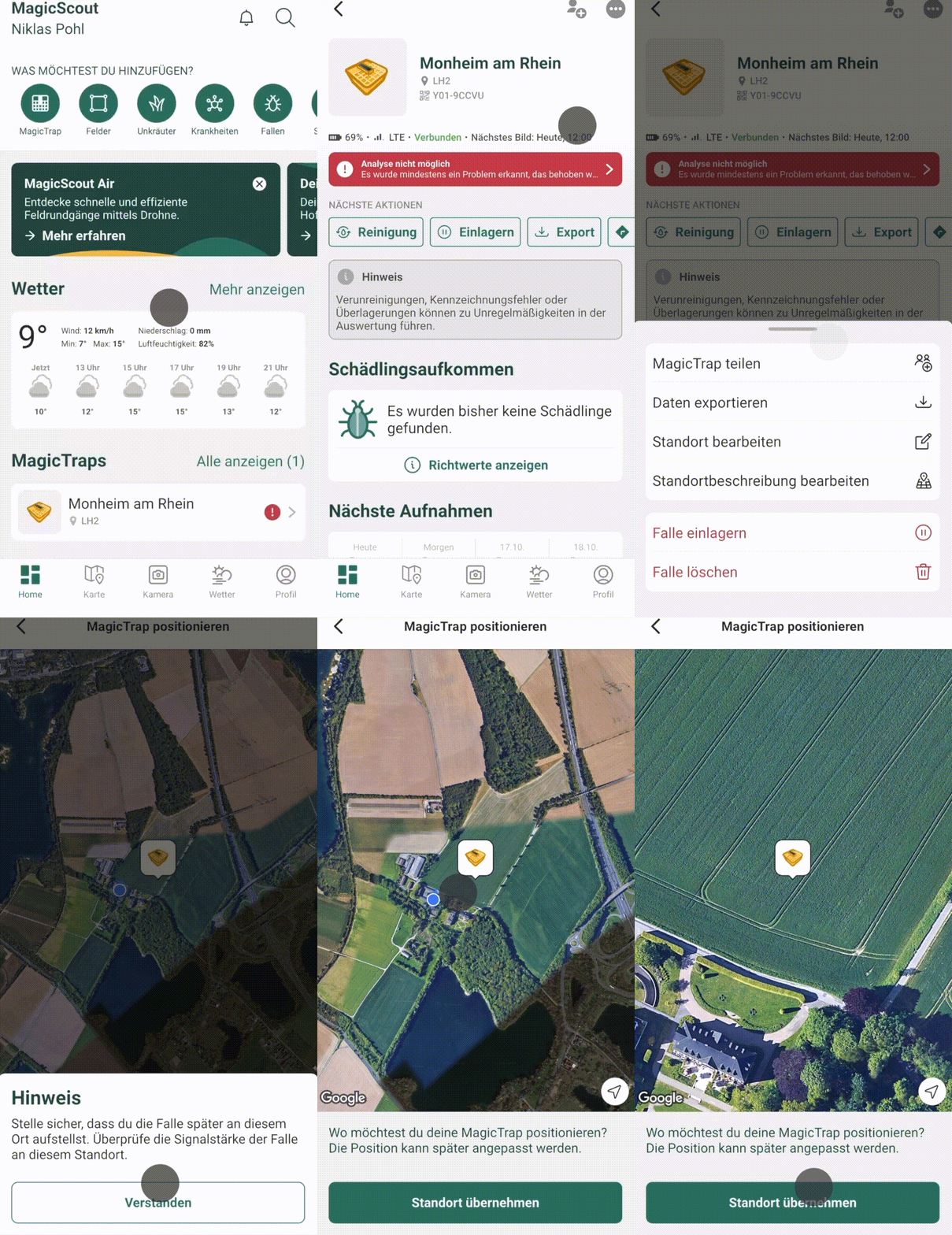
The location of the trap can be adjusted in the app (e.g. when the device changes field).
The location does not update automatically, but must always be adjusted manually as shown below.
Note:
The MagicTrap 2 is able to communicate the location. This is not yet available in the app, but if you need the location, e.g. to find the trap in the field again, you can contact Customer Support.
Until it is available in the app, the location must also be manually adjusted for the MagicTrap 2 in the app. miscellaneous
Would you like to use your MagicTrap with a new account or borrow your trap?
It's very easy!
//Delete MagicTrap from the app
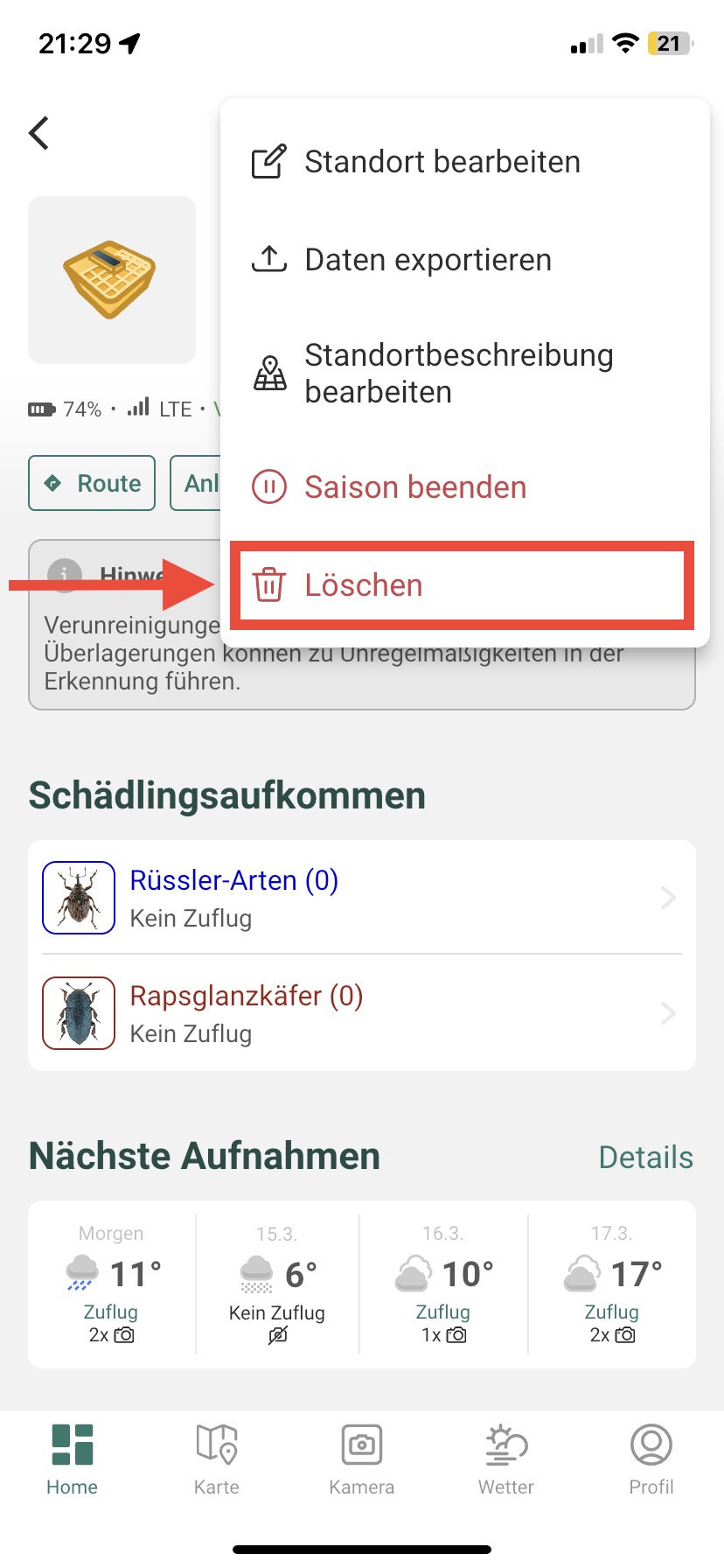
Your trap is immediately decoupled and can be connected to a new account. All pictures that have been taken so far cannot be seen by the new account.
Important note: Please contact support if you want to transfer your license to another account.
You can check the signal strength on the device as well as in the app. Both are only possible if your device is also connected to the account.
The LED display on your MagicTrap not only gives you information about the remaining battery charge, but also shows you whether your MagicTrap is successfully connected to the MagicScout app and how good your wireless signal is at the installation location.
Important: Please move your trap if it receives a weak signal or just receives “EDGE” so that it can reliably send pictures.
Check on the device:
Basically: The more blue LED lights on the top bar, the better your radio signal is. To check, hold down the function button on the side of your device until the LEDs start blinking:
- 1 blue lamp is on: signal strength poor
- 2 blue lamps light up: signal strength medium
- 3-4 blue lamps are on: signal strength good - very good
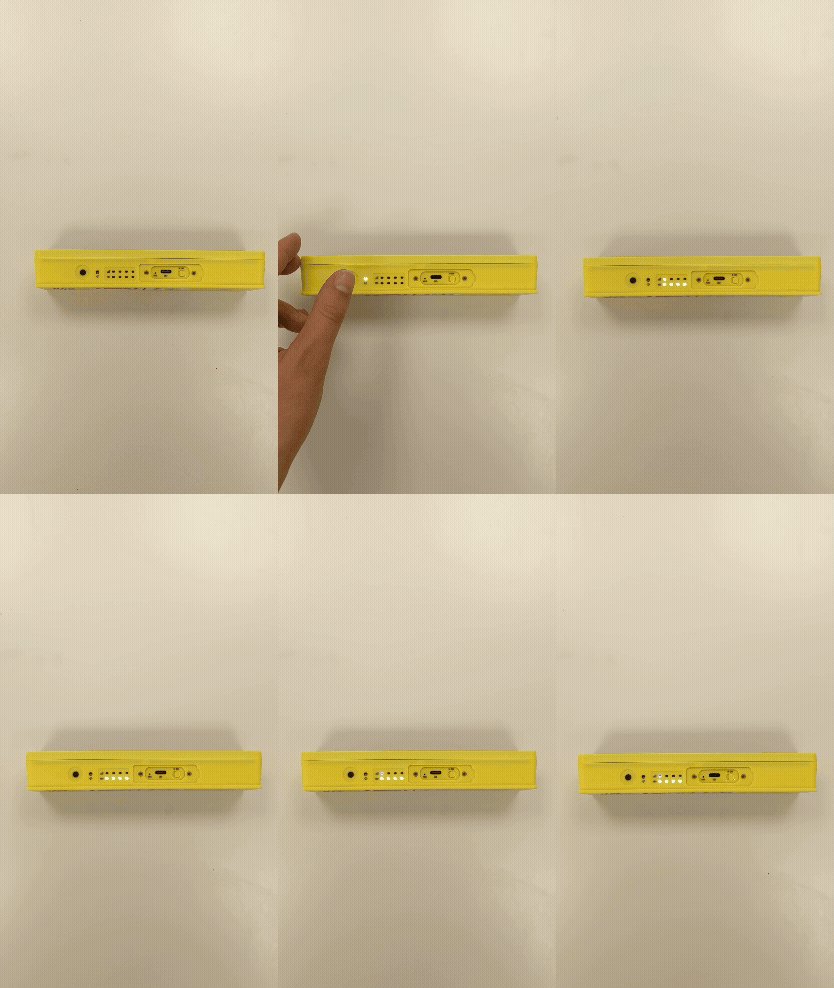
Example: poor signal strength
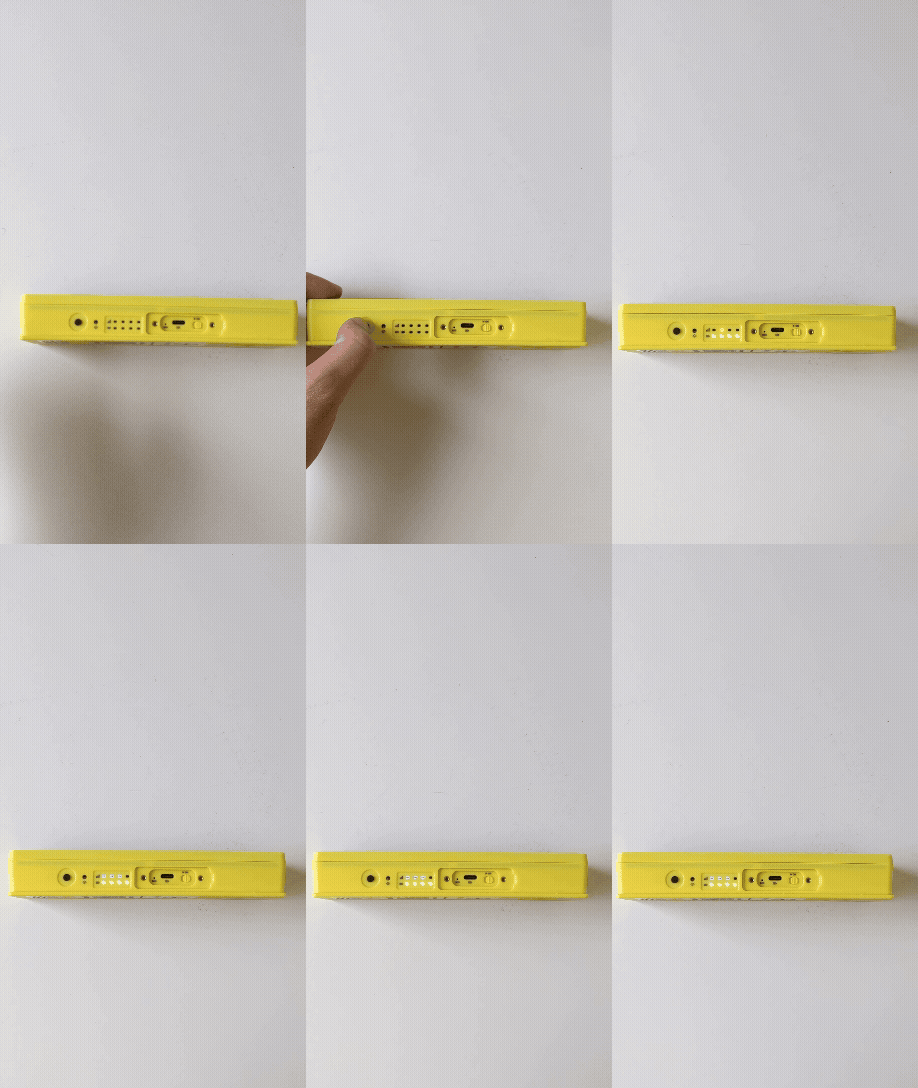
Example: good signal strength
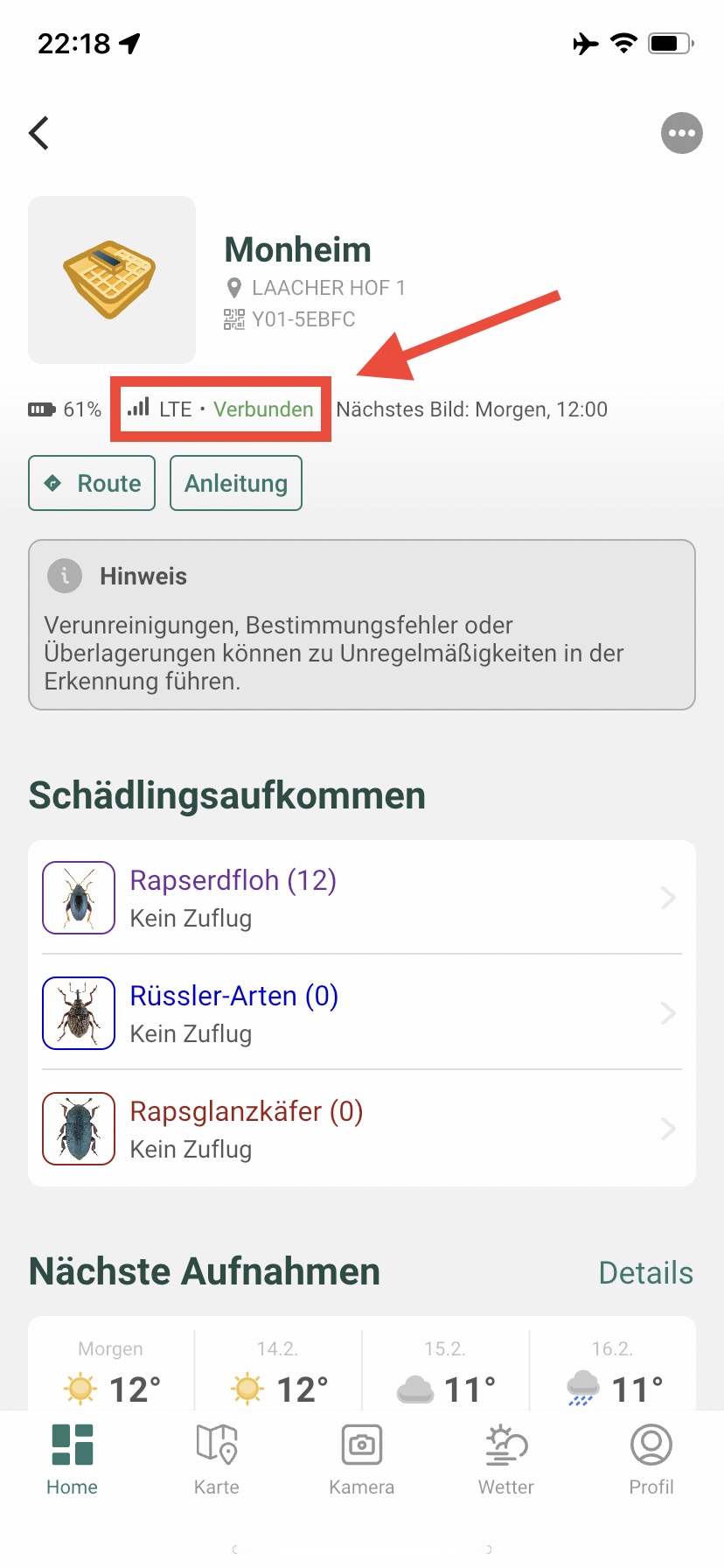
In-app verification:
The app also shows the device's signal strength.
Note: The displayed signal strength always refers to the last signal that the device sent and may therefore differ from the real signal strength (e.g. when the trap is transferred to another field).
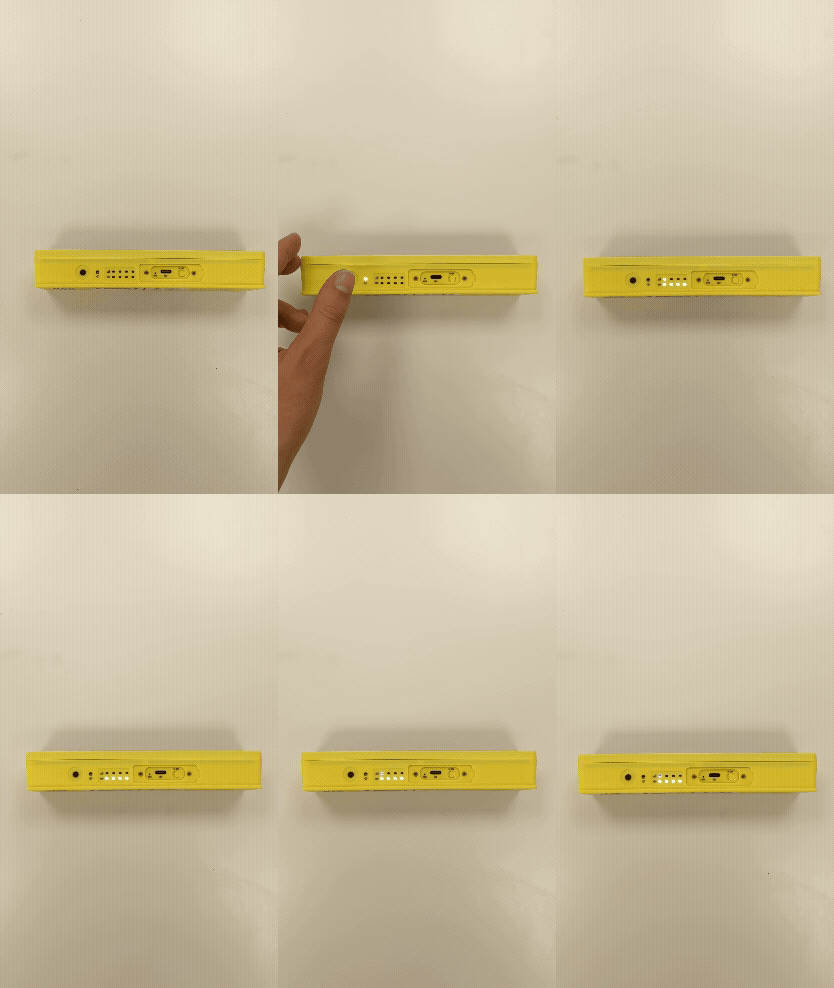
The bottom LED display on your MagicTrap 2 tells you how much battery charge is left on your device. However, you can also check the battery level in the app.
Check on the device:
Basically: The more LED lamps in the bottom bar are green, the better your battery level is. To check, press the function button on the side of your device once (see video).
- Four green lights: > 75% charge level
- Three green lights: > 50% charge level
- Two green lights: > 26% charge level
- A green lamp: > 11% charge level
- Four red lights flash: < 10% charge level
In-app verification:
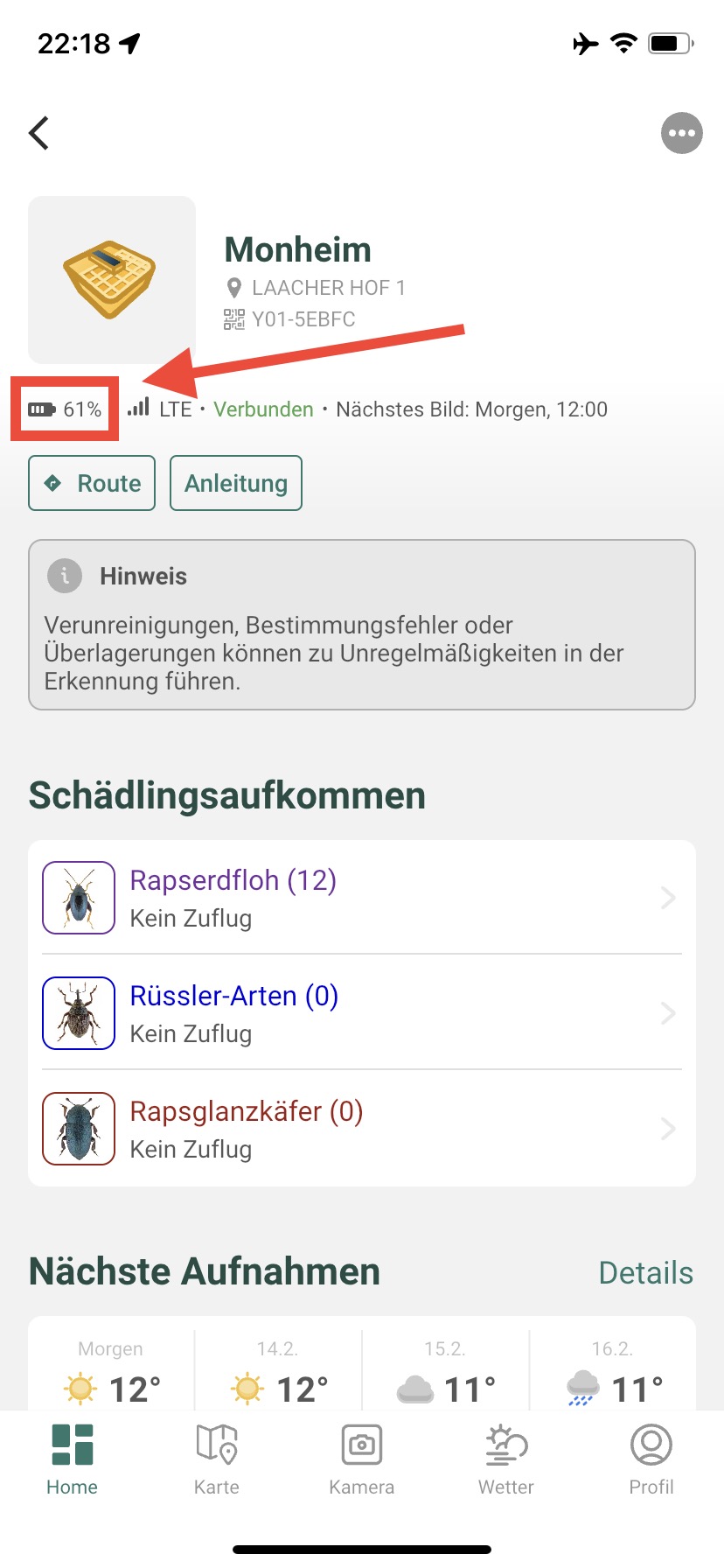
You can also check the device's battery level in the app.
Note: This battery level always refers to the last signal that the device sent and may therefore differ from the real battery level.
Through the web shop, you currently have the option to purchase ten traps per account/email address, which can be used with the appropriate license.
In the event that you want to purchase additional traps, a second account/email address and an additional license are required.
The MagicScout app gives you the opportunity to decide for yourself when the MagicTrap monitoring season ends and when it starts.
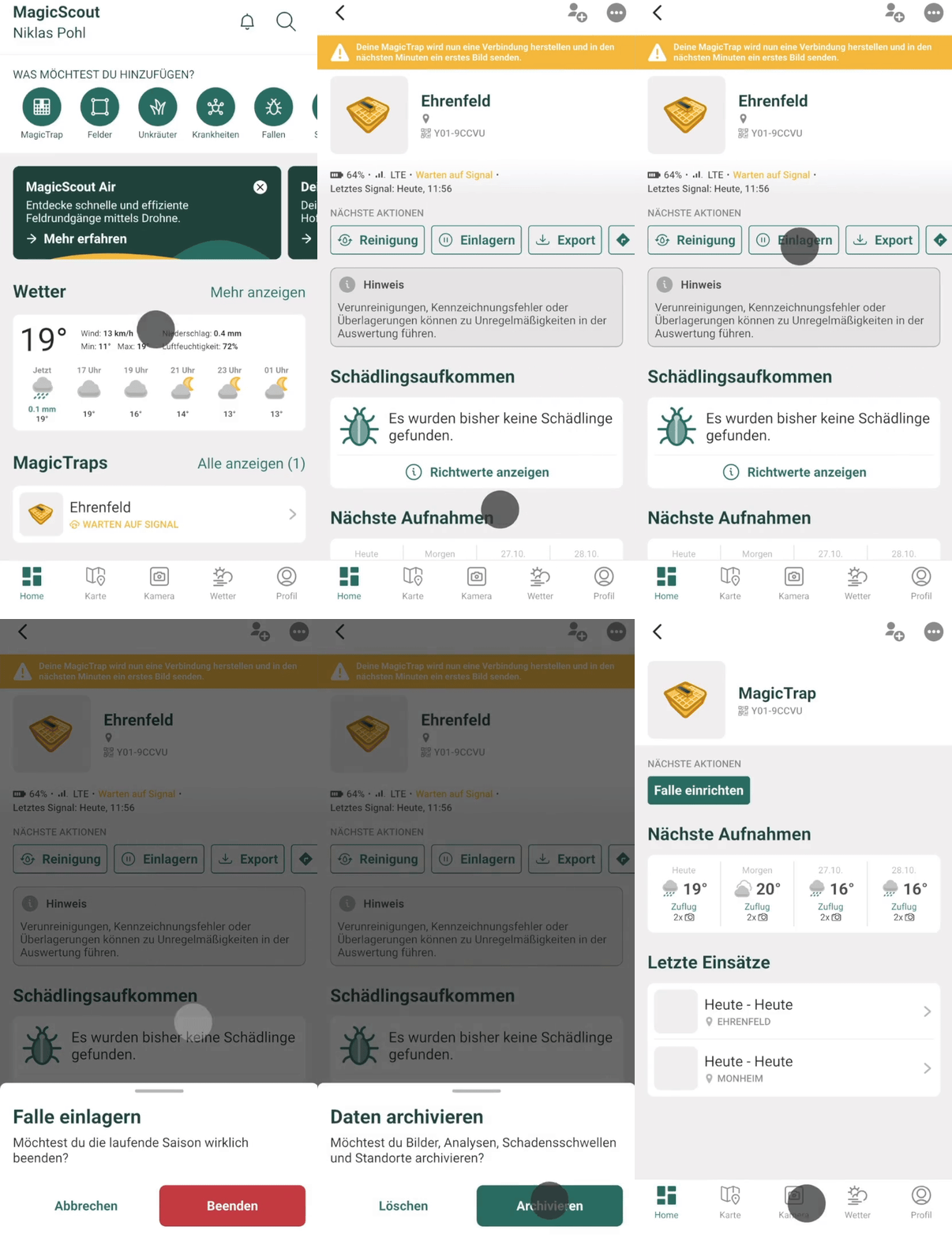
A previously stored MagicTrap can easily be reactivated via the app. It is then ready for use and can once again help you with monitoring.
The MagicScout app gives you the opportunity to easily end your MagicTrap season - whenever you want!
If you want to end the season, you can store the MagicTrap in the app with just one click. This will officially end the season and the trap will disappear from your active overview. When stored, the trap no longer takes photos or recordings, so you can turn it off and store it safely.
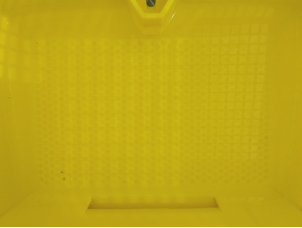
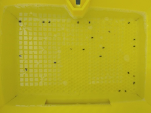
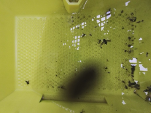
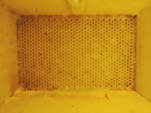
The MagicScout application provides all important information about the maintenance requirements of your MagicTrap. The focus is on the quality and appropriate analysis of the generated images.
As part of this, the following status messages can be displayed. Feel free to use our sample images as a guide.
- Normal: It's okay.
- Angled installation: The water in the trap body of your MagicTrap is not distributed and collects on one side. Please reposition the trap body.
- Dry: There is no water (anymore) in the trap body of your MagicTrap. Please fill up the water tank.
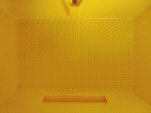
The MagicScout application provides all important information about the maintenance requirements of your MagicTrap. The focus is on the quality and appropriate analysis of the generated images.
As part of this, the following status messages can be displayed. Feel free to use our sample images as a guide.
- Normal: It's okay.
- Frozen: The water in your MagicTrap is frozen. Please remember to store your MagicTrap in case of prolonged frost and cold weather.
- Snow: The trap body of your MagicTrap has snow. Please remember to store your MagicTrap in case of prolonged frost and cold weather.
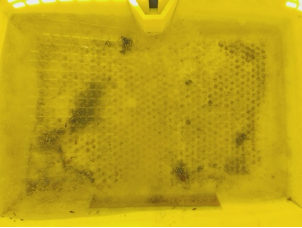
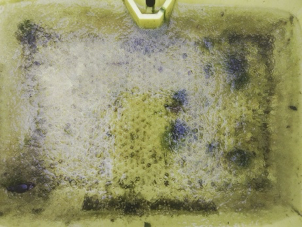
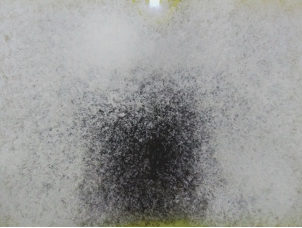
The MagicScout application provides all important information about the maintenance requirements of your MagicTrap. The focus is on the quality and appropriate analysis of the generated images.
As part of this, the following status messages can be displayed. Feel free to use our sample images as a guide.
- Normal: It's okay. There are a few bubbles in the corners of the trap body.
- Partially foamy: Increased blistering over larger areas in the trap body of your MagicTrap.
- Highly foamy: Strong and extensive blistering in the trap body of your MagicTrap. Please clean the trap body and fill the water tank.
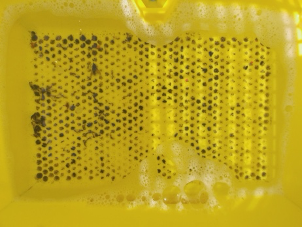
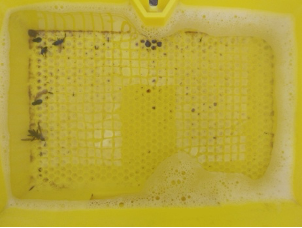
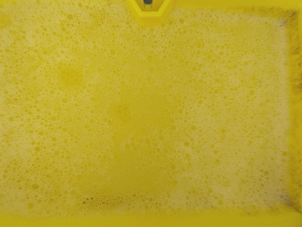
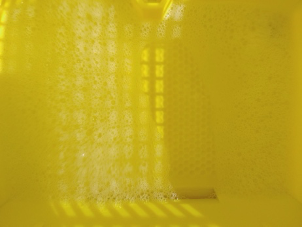
The MagicScout application provides all important information about the maintenance requirements of your MagicTrap. The focus is on the quality and appropriate analysis of the generated images.
As part of this, the following status messages can be displayed. Feel free to use our sample images as a guide.
- Empty: Your MagicTrap is empty or was recently cleaned.
- Normal: Your MagicTrap has sporadic pest infestations.
- Too full: Your MagicTrap has too many pests, please clean the trap body for optimal image recognition.
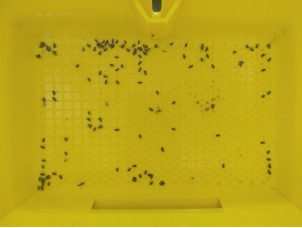
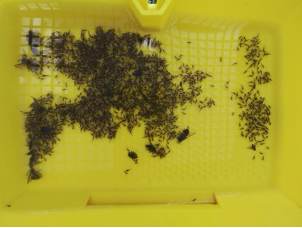
The MagicScout application provides all important information about the maintenance requirements of your MagicTrap. The focus is on the quality and appropriate analysis of the generated images.
As part of this, the following status messages can be displayed. Feel free to use our sample images as a guide.
- Clean: Like new, your MagicTrap is absolutely clean.
- Normal: Your MagicTrap has a clean state of the trap body.
- Dirty: Your MagicTrap has (occasionally) dirt. Mix-up with pests may occur.
- Heavily dirty: Your MagicTrap is heavily soiled, please clean it for optimal image analysis.
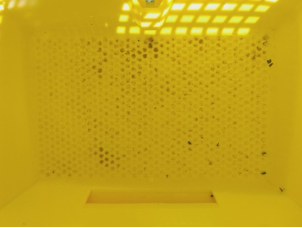
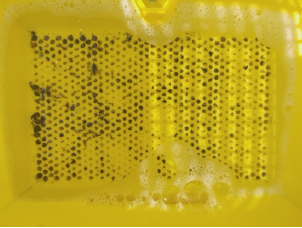
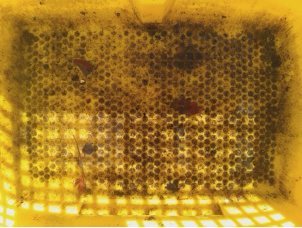
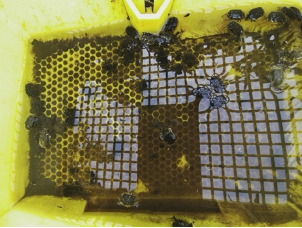
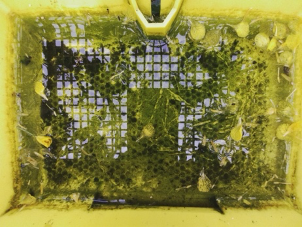
The MagicScout application provides all important information about the maintenance requirements of your MagicTrap. The focus is on the quality and appropriate analysis of the generated images.
As part of this, the following status messages can be displayed. Feel free to use our sample images as a guide.
- Normal: Everything is clearly visible.
- Limited visibility: There is an interference factor on the camera module lens. Please clean the lens.
- Distorted/blurred: The trap body is not completely visible or shows blurry images. Please check the positioning and cleanliness of the lens.
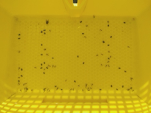
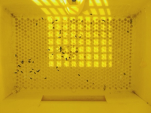
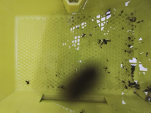
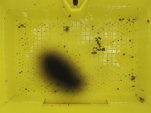
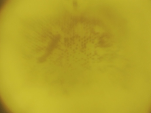
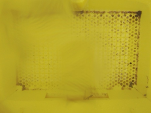
The MagicScout application provides all important information about the maintenance requirements of your MagicTrap. The focus is on the quality and appropriate analysis of the generated images.
As part of this, the following status messages can be displayed. Feel free to use our sample images as a guide.
- Normal: The trap body is optimally oriented. Everything is easy to see.
- Wrong: The trap body is partially or not at all visible, or is not sufficiently well positioned.
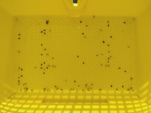
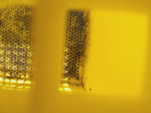
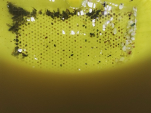
The MagicScout application provides all important information about the maintenance requirements of your MagicTrap. The focus is on the quality and appropriate analysis of the generated images.
As part of this, the following status messages can be displayed. Feel free to use our sample images as a guide.
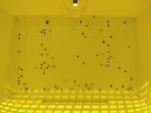
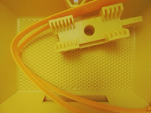
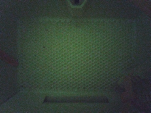
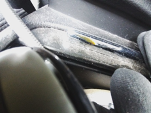
- Normal: Everything is clearly visible.
- Obstruction of vision: There is an obstruction factor in the trap body of your MagicTrap. Please remove it.
- Too dark: The image of your MagicTrap is too dark. Please ensure that there is sufficient light exposure.
- No trap body: The image does not show the trap body, but an object outside of your MagicTrap. Please reposition the camera module.


If you need our assistance, feel free to use our contact form.
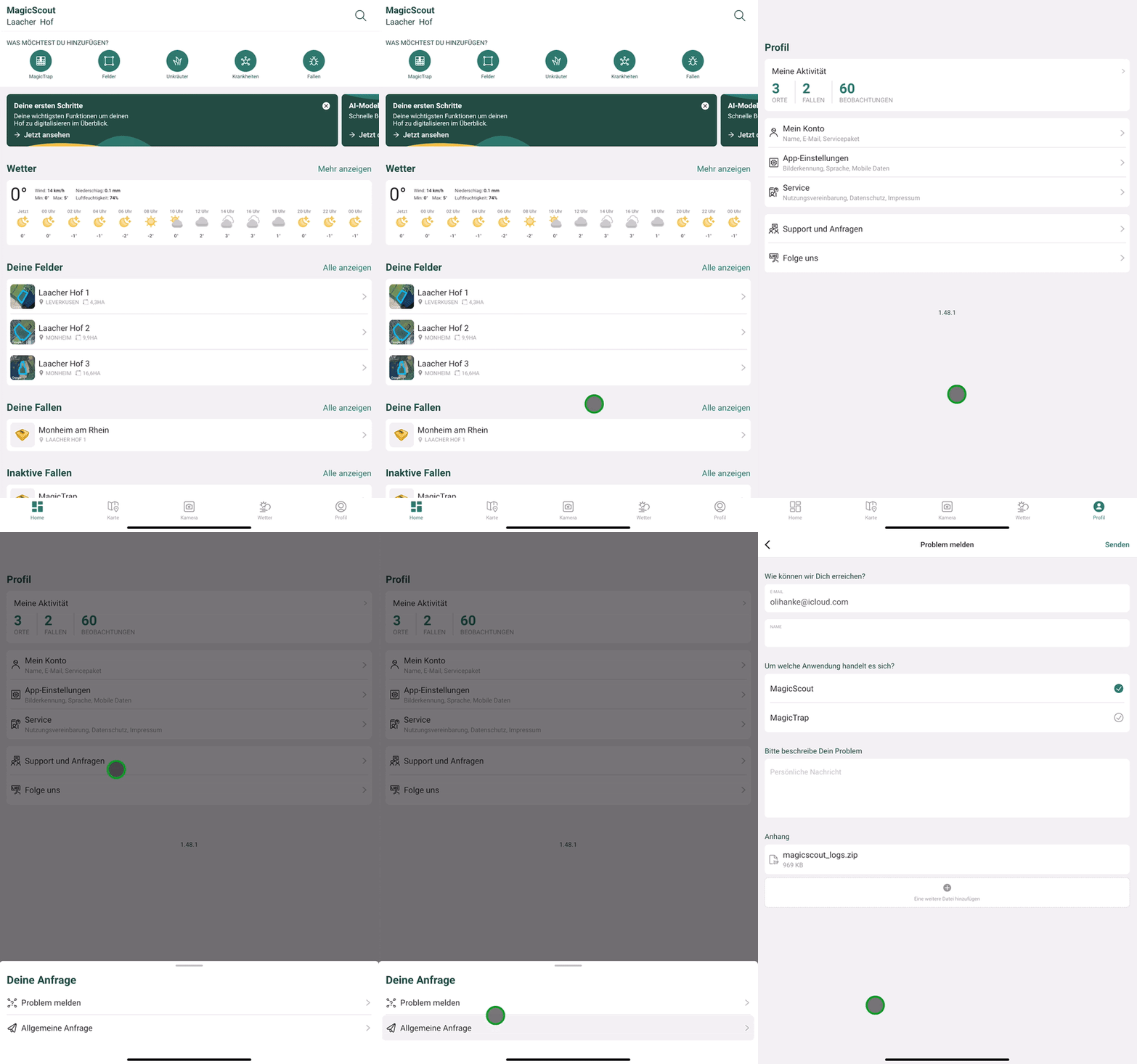
You can also forward questions and problems to us at any time via our app:
If your trap doesn't send any images, you can load the trap first and then take two easy steps:
- Restart the trap: Restarting the trap may cause your trap to send images again as usual.
- Reset the trap/Reset: This step resets the trap to the factory state. Here, it can take up to 5 minutes for the trap to send the first image after the step.
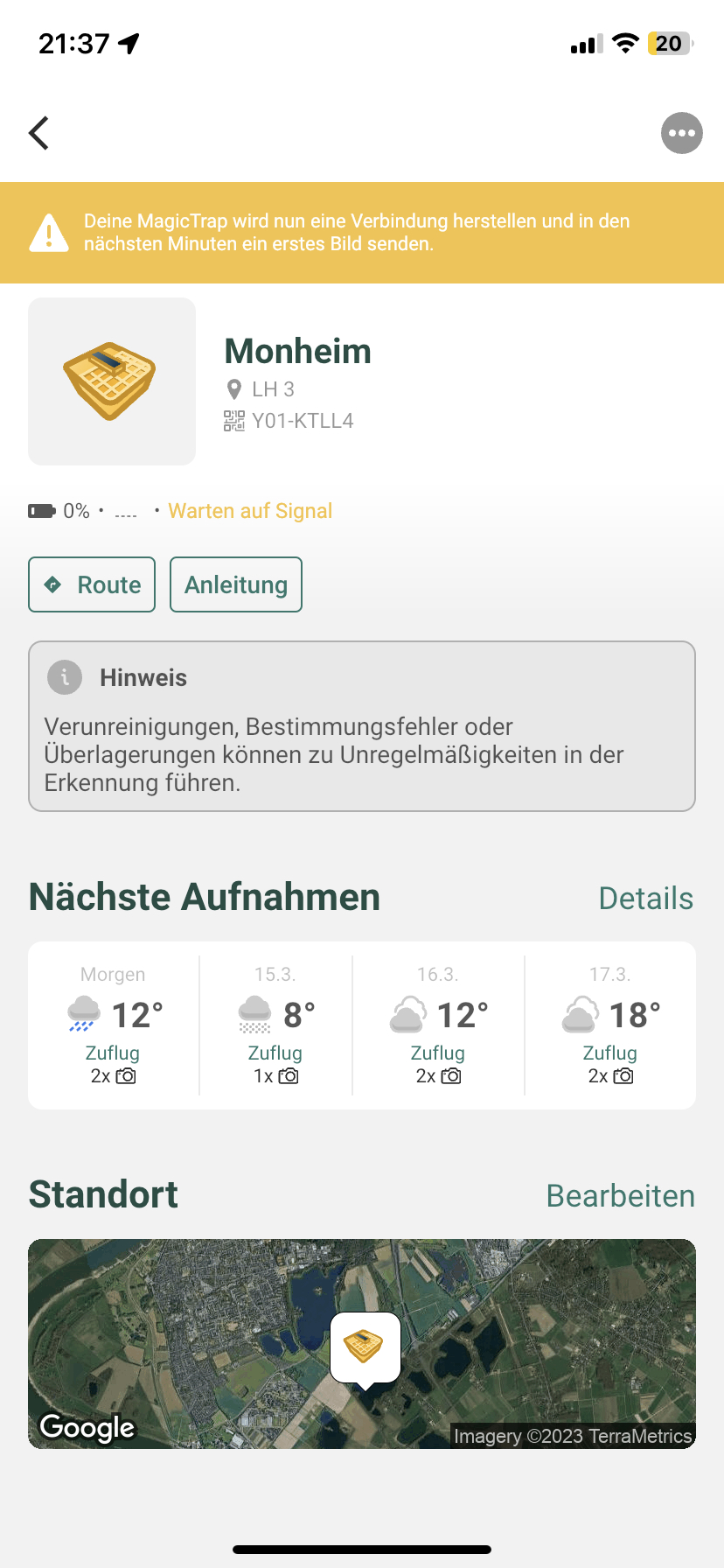
Unfortunately, your MagicTrap is not sending any signals. There can be several reasons for this:
-Did you install the device recently? Then this message is completely normal and should disappear as soon as the trap has established the first connection with the app.
Note: This can sometimes take several hours if you've already switched on the device before connecting to the app.
- The module is not charged or has discharged over the winter -> Charging the battery can help
- A weak mobile signal can also be a reason why the trap cannot send a signal to the app. Re-position the trap and then restart the trap.
Did you accidentally connect your trap to a wrong account at first?
Please delete the trap from your app first before you log in with the correct account. This ensures that your trap is automatically unlocked again.
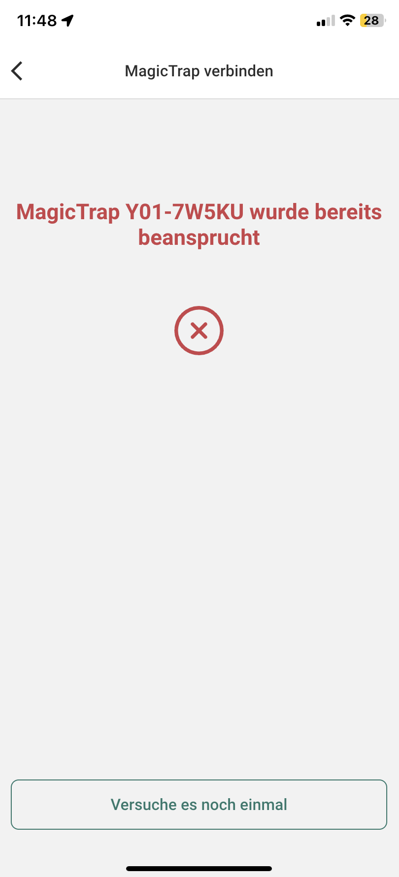
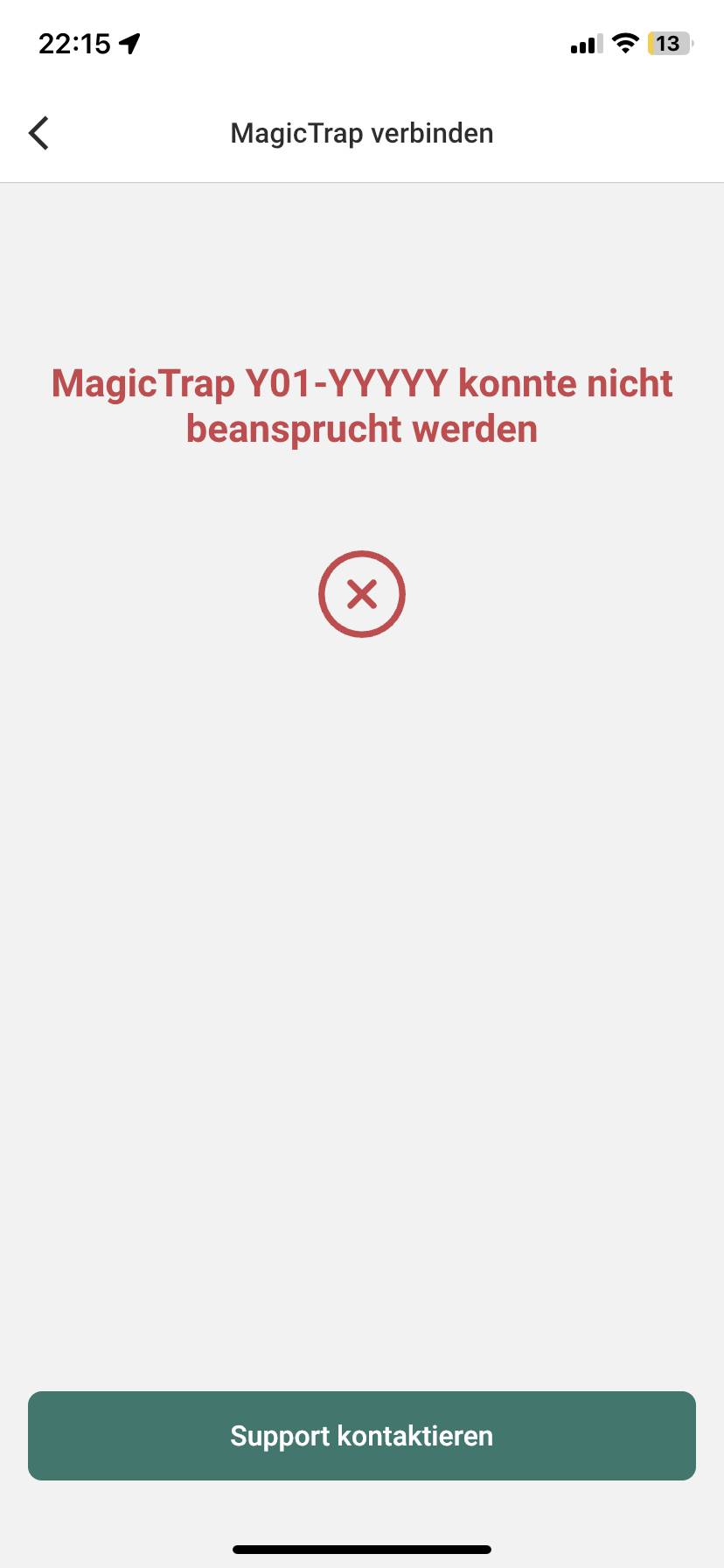
If your MagicTrap cannot be linked by QR code or manual entry, please contact our customer service.
Are you shown that you do not have a license even though you have also ordered it? Then we have an important tip for you:
The software license is linked to the email account used for the purchase.
For an error-free connection of the physical MagicTrap with the MagicTrap software, the same email address must be used when creating the MagicScout user account as when ordering from the web shop.
If you used a different email address when ordering, the license can be transferred to the correct user account. In this case, feel free to contact our customer service.
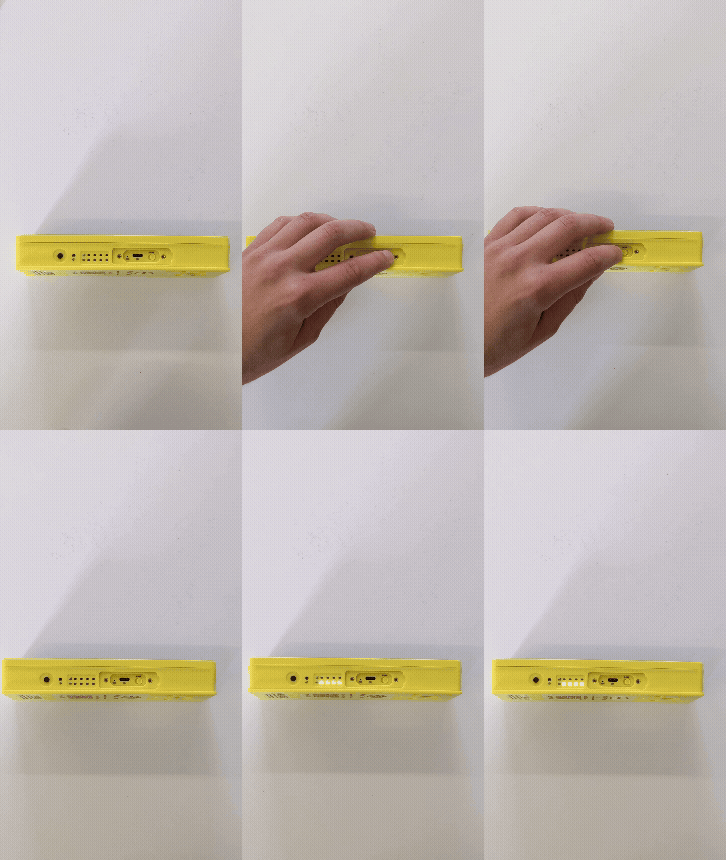
The restart can be initiated by using the device's slider. To do this, the cap must be unscrewed. If the trap is still switched on, the controller must be switched to “OFF” once. You must then wait 30 seconds before the controller can be switched back to “ON”.
Important: After each restart, the device takes a test image.
When this is done, the start sequence follows:
The green LEDs on the bottom bar show the battery status immediately after restarting
The LEDs on the top bar first look alternately in yellow; the device searches for reception, then the device shows the signal strength with blue LEDs in the top bar
- The single yellow LED then blinks and shows the upload status of the image taken.
As soon as the image is uploaded, the LED stops blinking.
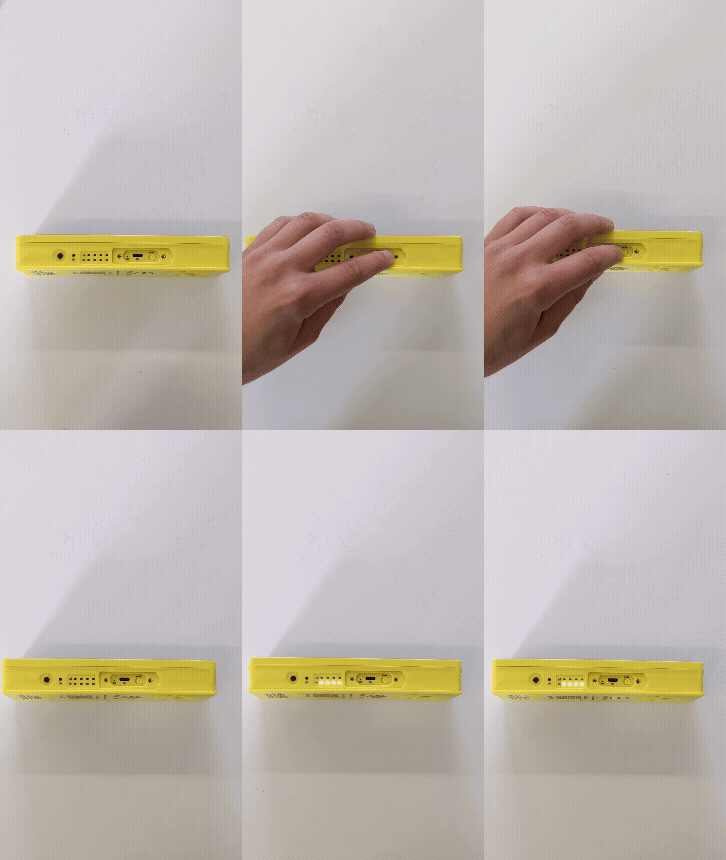
After approx. 5 minutes, the trap has restarted. The LEDs will turn off and you should get a picture in the app.
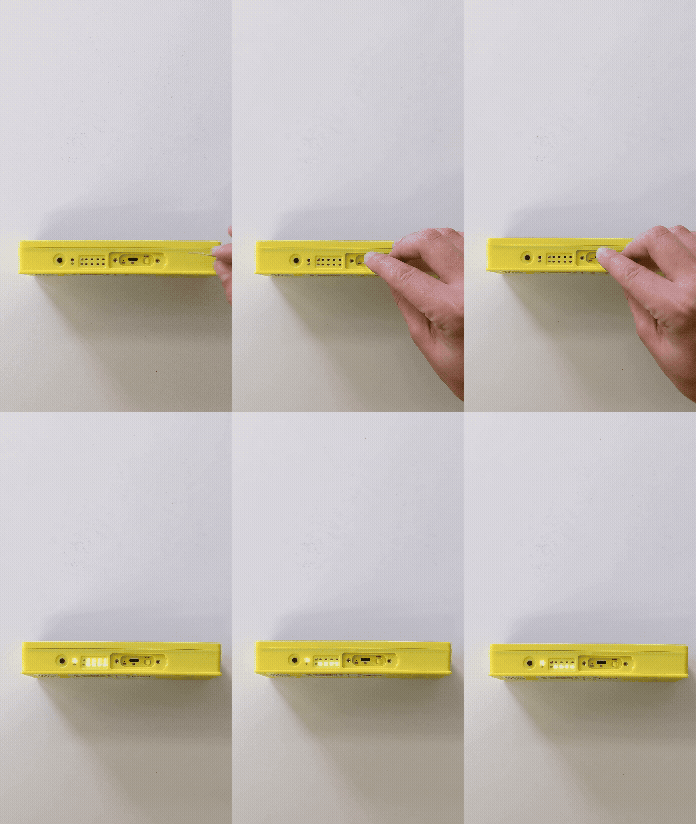
If there are some problems with the connection, the solution may be to reset the camera module software.
How to reset the camera module:
The trap is switched on;
LEDs are off, press the hidden button to the left of the yellow power lever for approx. 3-5 seconds with a paper clip or similar
Top LED bar starts blinking
- The lower LEDS bar is permanently switched on
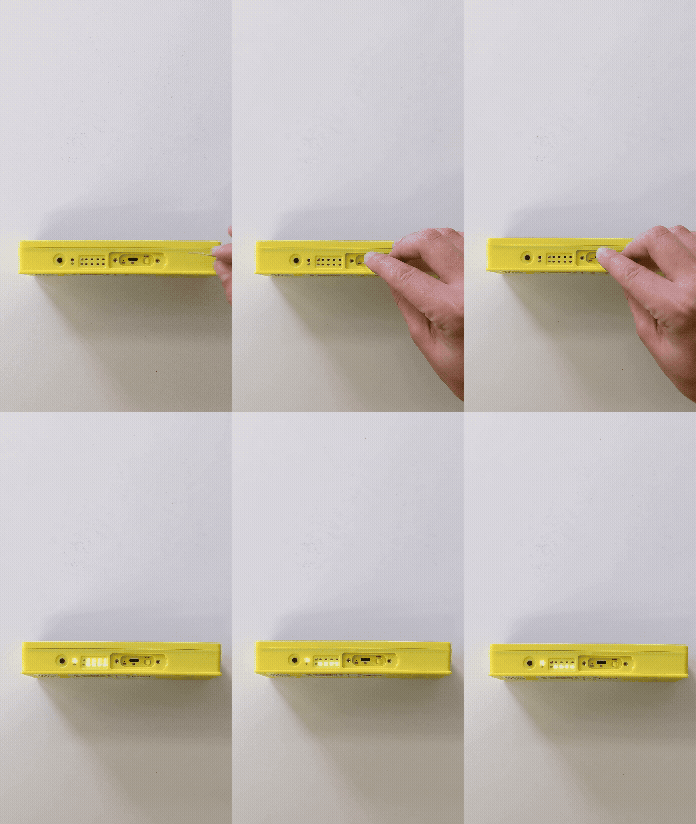
After approx. 5 minutes, the trap has restarted. The LEDs will turn off and you should get a picture in the app.
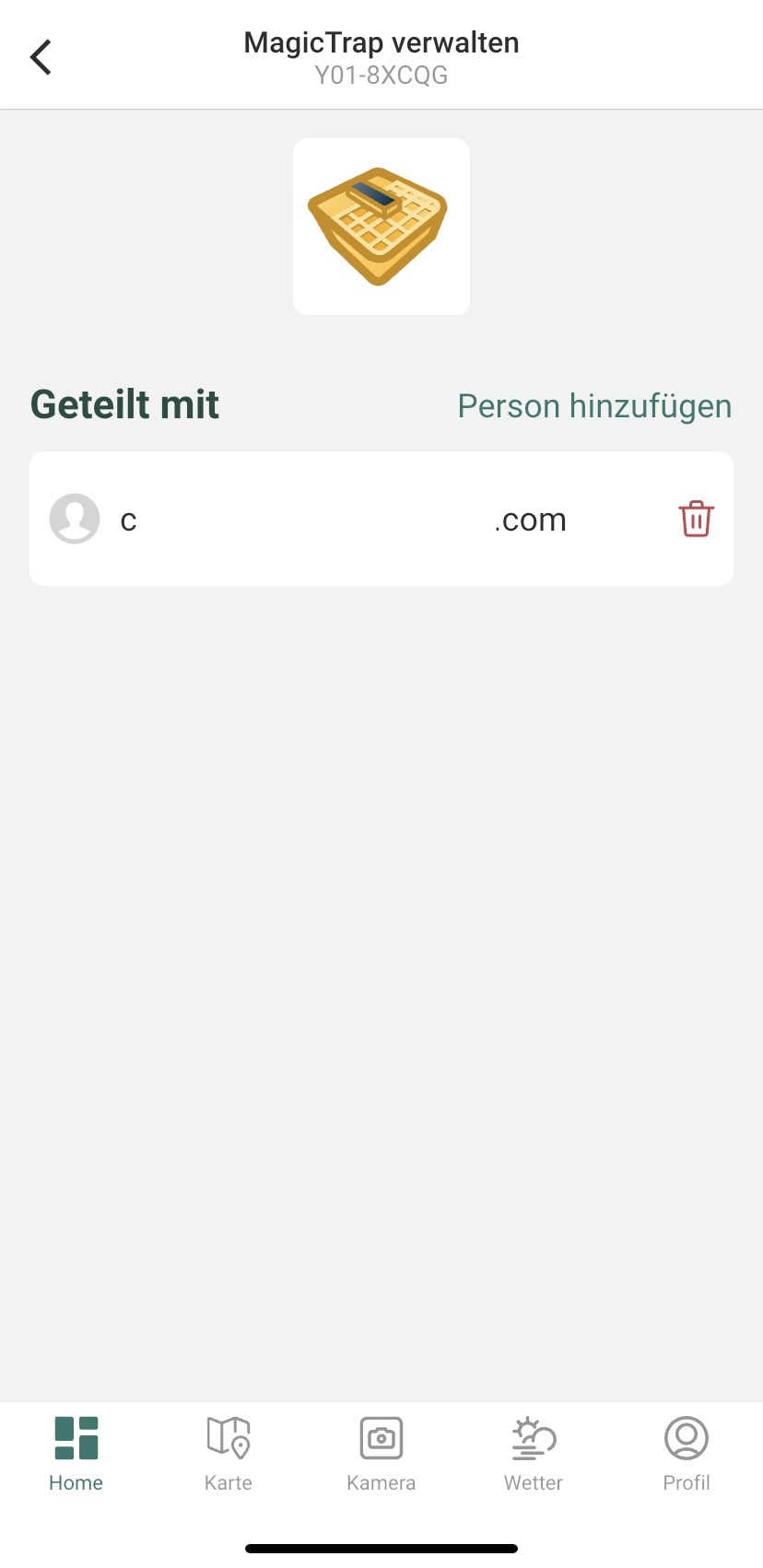
Find out how you can share your trap with other people here.
If it doesn't work, there are three things you can check:
// Make sure that the process was saved correctly
- Click on the icon with the two people in the top right corner. Under “Manage MagicTrap”, you will see the accounts that have already been activated for the corresponding case.
- Also check that the account with which the other person is signed in to the MagicScout app has been entered.
// Make sure the email address is uppercase and lowercase
If the email address is "Max.Mustermann@gmail.com", the case cannot be shared under "max.mustermann@gmail.com".
// Make sure that the other person has installed the latest MagicScout app version
- The invitation is not sent by email, but appears directly in the app.
It may well happen that the MagicTrap images are blurred, e.g. due to dirt or dew formation on the lens or when the image was taken in the rain in the field.
However, if the device takes permanently blurred images, you should check that the lens is clean and clean the lens if necessary.
If a defect on the device causes blurred images, you are welcome to contact our customer service.
Read the following safety and warning instructions carefully before using MagicTrap.
Failure to follow these instructions and information may result in fire, electric shock, or other injuries, or damage to MagicTrap or other property.
As a rule, damaged items often pose one or the other risk - we therefore recommend that you do not use the MagicTrap if damaged.
If the damage was caused by transport, please contact our customer service so that we can provide appropriate compensation.
The MagicTrap is a digital yellow bowl, or insect trap.
To fulfill the purpose, the camera module should only be placed above the trap body. Attaching it to the grille helps with this. This ensures that only the interior of the trap is photographed in an ideal position.
Do not use it to photograph other objects or even people, as this does not serve the purpose of this device.
If your MagicTrap is damaged as a result of use, please stop using it.
Don't try to repair them yourself and please always follow our safety instructions included with your order.
If your yellow bowl cannot be repaired with the spare parts we offer, please contact our customer service.
To prevent permanent internal or external damage to the product, MagicTrap should not be stored permanently or over a longer period of time at sub-zero temperatures (< -5°C) or at temperatures above 35 degrees Celsius.
Permanent exposure to vibration or vibration can also cause irreversible damage to the product. Appropriate storage is recommended.
Storage at room temperature in a dry environment is ideal so as not to damage the battery and other components.
Are you a user in Germany, Austria, Slovakia, Czech Republic or Great Britain?
Then please use the following contact form if your problem is not described in the FAQs or if you would like to share questions and general feedback with us.
Alternatively, you can forward problems to us directly via the app function Profile ➔ Support and Requests ➔ Report a problem.
Are you a user in Poland?
Then please use the following contact form if your problem is not described in the FAQs or if you would like to share questions and general feedback with us.
Are you a user in Switzerland, Lithuania, Latvia, Hungary, Estonia, Denmark, Finland, Romania or Sweden?
Then please use the following contact form if your problem is not described in the FAQs or if you would like to share questions and general feedback with us.
If you have any further questions or personal concerns, our sales representatives are available for you with telephone support.
Handle your MagicTrap with due care.
The housing is made of plastic and contains sensitive electronic components.
Do not pierce or break the device or battery, expose the MagicTrap or battery to open flames or liquids, or drop the device.
Stop using MagicTrap in case of suspected damage, as this may cause overheating or injury.
Do not use the device if the solar panel protector is cracked, as this could cause injury. Cracks, breaks and sharp edges on the plastic housing can also cause injuries.
Only use the components included in the package during installation to avoid damaging the MagicTrap.
The use of additional components, such as screws or nails, can promote or cause any damage.
After installing the MagicTrap, make sure that the camera module is not used permanently or over a long period of time at sub-zero temperatures (< -5°C) or at temperatures above 35°C degrees Celsius. Uninstalling MagicTrap during periods of extreme weather is recommended to avoid irreversible damage.
Always make sure that you remove the device from the field before taking plant protection measures to avoid contamination.
When servicing the trap and changing and filling the water as a result, you should pay particular attention to the camera module.
To avoid damage, don't put your MagicTrap on the ground. Use the appropriate hook on the bracket for safe storage during maintenance. Here you can mount the grid including MagicTrap.
Always ensure that you wear gloves when servicing your MagicTrap and do not come into direct contact with the device to prevent contact with potential residues of chemical plant protection products. If necessary, clean the device with a damp cloth before servicing.
To ensure safe and responsible use of MagicTrap, read the QuickStart Guide carefully before use and, for specific use situations, read the detailed user manual, which you can find on our website.
Print out these instructions and store them in a safe place.
You can use the MagicScout app without being connected to
the Internet.
Captured images are saved, uploaded, analyzed at the next opportunity.
You can also easily install the AI models to directly identify weeds,
diseases, and pests live without an Internet connection.
This can be done under Profile ➔ App Settings ➔ Camera
Settings ➔ Live Detection without Internet.
The image recognition models of the MagicScout app identify various pest,
weed, and disease species.
The app provides a detailed overview of the individual species:
Camera ➔ Weeds / Diseases / Traps ➔ i ➔ More information
You can install the MagicScout app free of charge from the App
Store or Google Play and get started right away!
If you would also like to receive photo analyses of your fields, including
weeds and diseases, download our app and connect your MagicTrap in just
a few steps.
No! You can use the MagicScout app and its features without a user profile.
However, creating a free user account offers many benefits, such as
creating and saving personalized fields and observations.
However, if you want to link a MagicTrap, an account is mandatory.
To delete your account, follow the steps in the MagicScout app:
Profile ➔ Personal and Account Settings ➔ Account management ➔
Delete user account
This notification usually appears if the MagicTrap is already used with
another account. If you are sure that you have not claimed your MagicTrap
yet, please advise us via the AgroCloud contact form.
Yes, you can use the fields and observations in the MagicScout app on all
your devices. Just use the same account for the different devices. The data
will be updated there automatically
Create MagicScout account and log in

- Open the MagicScout app
- From the main screen menu at the bottom, go to the “Profile” menu
- Go to “Personal and Account Settings”
- Enter the e-mail address you want to link to your Magic Scout account
Log out

- Go to the MagicScout “Profile” menu on the main screen.
- Select “Personal and Account Settings” and then “Account Management”
- Tap the “Log-out” button at the bottom of the screen.
The MagicScout app is currently available in the following languages:
- English
- German
- French
- Italian
- Spanish
- Slovenian
- Czech
Normally, when you download the MagicScout app from your local market you may find the local language and English as available languages in the MagicScout app.
If you want, you can switch between the two languages. Here’s how:

- From the MagicScout main screen menu at the bottom, go to the “Profile” menu
- Go to the “App settings” menu
- Select “Language” to change the app language
MagicScout is the tool for the crop professional!
Structure your field observations to make better decisions. Save time by identifying causes of damage in seconds and automate your field rounds with MagicTrap.

MagicScout at a glance:
- Connection to your MagicTraps
- Identification of weeds and diseases with image recognition
- Photo analysis of yellow traps
- Agricultural weather 2.0 with spray weather recommendations
- Clear field profiles as a supplement to your field card index
Identify problems: With integrated image recognition, you can identify weeds and diseases quickly and easily. You can also analyze pests in your yellow traps. You can document the causes of damage in your field in seconds, even without being connected to the Internet.
Analyze agricultural weather: With Agricultura Weather 2.0, you can now better understand how your crops are developing, what is stressing them, and when you should react. MagicScout calculates your ideal spraying windows and will soon be able to analyze historical weather data.
Generate field profile: MagicScout generates a clear field profile, giving you all the relevant information at your fingertips anytime, anywhere. Questions like "Have I had this weed in this location in the last few years?" or "What are the stressors in my field?" are a thing of the past.
Automate field walks: Always wanted to monitor your crops remotely? With the MagicTrap smart insect trap, you can always be in the field without being in the field. Connect your digital yellow trap with MagicScout app to respond to pest influxes even better.
Artificial intelligence
Your shots are analyzed in seconds using the latest technology and artificial intelligence. Our models are continuously trained to recognize patterns in images.
Training data
We have a growing data archive comprising thousands of images to train the software.
This archive contains photos of crops in different growth stages and lighting conditions from multiple angles, as well as several reference images of typical canola pests in yellow traps.
For optimal image recognition in the MagicScout app, please keep in mind the following:
Good light
Good exposure is essential. Make sure it is neither too dark nor too light. In sunny conditions, avoid casting shade on the subject.
Tip: Before photographing a dark subject, use the flash on your phone to ensure the subject is as clear as possible.
Bad light
Our built-in flash function consigns poor lighting conditions to history.
Open scan mode by selecting the "Camera" function in the bottom bar of the MagicScout app. You can now activate or deactivate your smartphone’s flash by selecting the flash icon.
Note: Using the exposure function further reduces the phone’s battery life.
Good angle
For optimum recognition, photograph the weed or disease from directly above (at a 90-degree angle). This will keep all details visible and avoid distortions. When photographing the weeds, leave them in place and do not pull them out of the ground.
Good distance
For optimum results, the object should be in the foreground. Other leaves or plants in the picture may prevent image recognition. So, for weeds, try to have only soil in the background. To identify diseases, you can hold the affected leaf steady in your hand to bring it into the foreground.
Good quality
Shaky and unfocused images significantly affect image recognition. To prevent this, tap the weed once to focus the object automatically.

You can see your profile data under “Profile” in the MagicScout app. Select “Personal and Account data”, then “Personal data”. Click on “Edit” (top right corner) to change your first name and family name.
You will also find your current MagicTrap software license under “Profile”, then “Personal and Account Settings” and then “Account Management”.
Our team continues to develop the MagicScout app, so updates are available every few weeks. To stay up to date, we recommend that you enable automatic updates on your device.
Update iPhone apps automatically:
- Open your “Settings”.
- Select App Store.
- Activate the “App Updates” option.
Update Android apps automatically:
- Open the Google Play Store app.
- Select the profile icon in the upper right corner.
- Select Settings "Network settings", then select "Automatic app updates".
Want to save data by not running updates or synchronizing data when using the mobile network? No problem! Just deactivate the function in the MagicScout app.
Disable synchronization via mobile data

- From the MagicScout main screen menu at the bottom, go to “Profile” menu
- Open to the “App settings” menu
- Go to the “Data and storage” menu
- Disable “Use mobile data”
Enable/disable observations:
By disabling this feature in the MagicScout app, recorded observations can only be shared when you are actively connected to a WLAN. This will also result in a delay in receiving the results of the image analysis.
Enable/disable camera settings:
If the camera settings are disabled in the MagicScout app, updates for these settings can only be shared when you are actively connected to a WLAN. So if there are new image recognition models, these will only be downloaded when connected to a WLAN.
MagicScout can also optimize your storage space!

- From the MagicScout main screen menu at the bottom, go to “Profile” menu
- Go to the “App settings” menu
- Go to the “Data and storage” menu at app settings
- Enable the “Optimise local storage” function
If you activate this function, the data will only be stored in compressed form on your device. If you want to view a single image in full resolution, you can select it to download it automatically.
The image recognition hit rate depends very much on the quality of the image.
Please see the information in the MagicScout’s Optimal Photo Quality section.
Bad connection on the field?
We recommend downloading the required models to your phone via Wi-Fi beforehand. Recognition works even faster offline than online with image analysis in the cloud. Try it out!
To download the models to your smartphone in the MagicScout app:
- From the MagicScout main screen menu at the bottom, go to “Profile” menu
- Go to the “App settings” menu
- Go to the “Camera settings” menu
- Enable the “Diseases” option
- Download the AI models available
Any other suggestions or issues you’d like to report? Contact us directly from the MagicScout app or use the AgroCloud contact form!
Report a problem from within the MagicScout app:

- Open your MagicScout app
- From the main screen menu at the bottom, go to “Profile” menu
- Go to the “Support and Requests” menu
- Fill in the form fields to send your consultation